How to install VST3 plugins in FL Studio
Install VST3 plugins in FL Studio on Windows or Mac, scan them in Plugin Manager, add favourites and fix missing plugins with a Vitric trial as the example.
To install a VST3 plugin in FL Studio, run the plugin's installer, open Options > File settings > Manage plugins, then scan with Find plugins. Once FL Studio recognises it, mark it as a favourite and load it on the appropriate track. Downloading an installer alone does not add a plugin to the browser.
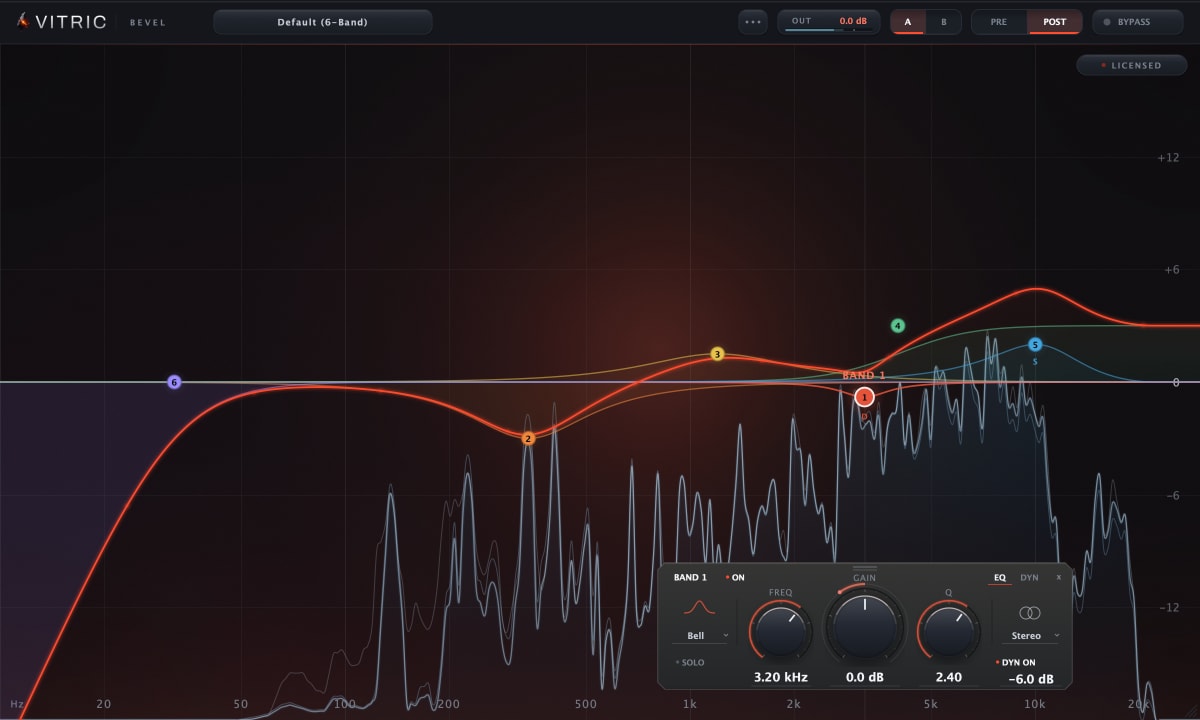
We will use Vitric's Bevel EQ as an audio-effect example. You can follow along with its free 3-day trial. Install and scan first, then request the trial so you spend the trial window listening rather than setting up.
Which plugin format should you install?
Choose VST3 for this walkthrough on either Windows or Mac. Vitric ships VST3 and AAX on both systems, plus AU on macOS. AAX is for Pro Tools; FL Studio will not load that version. AU is a Mac format, so it is not an option on Windows.
Vitric's Windows installer is a 64-bit .exe. Its Mac .pkg contains Intel and Apple Silicon builds. The plugin requirements are Windows 10 or later, macOS 10.15 or later on Intel, or macOS 11 or later on Apple Silicon. Use a compatible 64-bit FL Studio version and check its own OS requirements, which may be newer.
Where do VST3 plugins install?
| Computer | Vitric VST3 installation folder |
|---|---|
| Windows | C:\Program Files\Common Files\VST3 |
| Mac | /Library/Audio/Plug-Ins/VST3 |
These are system folders, shared by compatible DAWs. On Mac, paste the path into Finder's Go > Go to Folder. The leading slash means the computer's Library, not the Library inside your home folder. Some other vendors use ~/Library/Audio/Plug-Ins/VST3 for a user-only installation; Vitric uses the system folder above.
On Windows, a standalone app under C:\Program Files\Vitric Audio is separate from the VST3 plugin. Pointing a scanner at that application folder does not replace scanning the VST3 folder. Leave the installed plugin in its standard location instead of copying it into FL Studio's own application folders.
Install and scan in Plugin Manager
- Close FL Studio. Save your project, then get the current Bevel EQ installer for your operating system. Run it and let installation finish. Keep VST3 selected if the installer offers format choices.
- Open Plugin Manager. Start FL Studio and choose Options > File settings > Manage plugins. F10 opens File settings too.
- Check the scan location. FL Studio only accepts custom search paths for VST and VST2 plugins. VST3 and AU plugins must sit in their default system folders, which is where the installer puts them. Do not select the downloaded installer as a search folder.
- Enable Verify plugins. Verification lets FL Studio open the plugin and identify whether it is an effect or an instrument. Click Find plugins (older versions say Find more plugins) and let the scan finish. Some plugins show a pop-up during a verified scan; click it away so the scan can continue.
- Find Bevel EQ in the results. New plugins appear in the Browser under Plugin database > Installed > Effects > New. Check that the entry is VST3 and that its Status is OK. To add it to your favourites, tick its Favorite (F) box in Plugin Manager.
Load the plugin and start the trial
Route an audio clip or instrument to a Mixer insert, then open an empty effect slot on that insert. Click the arrow at the left of the slot, choose Select, and pick Bevel EQ from the list. If it is not in your favourites, the More plugins... option lists everything FL Studio has scanned. An EQ processes incoming audio, so loading it without a signal will not make a sound.
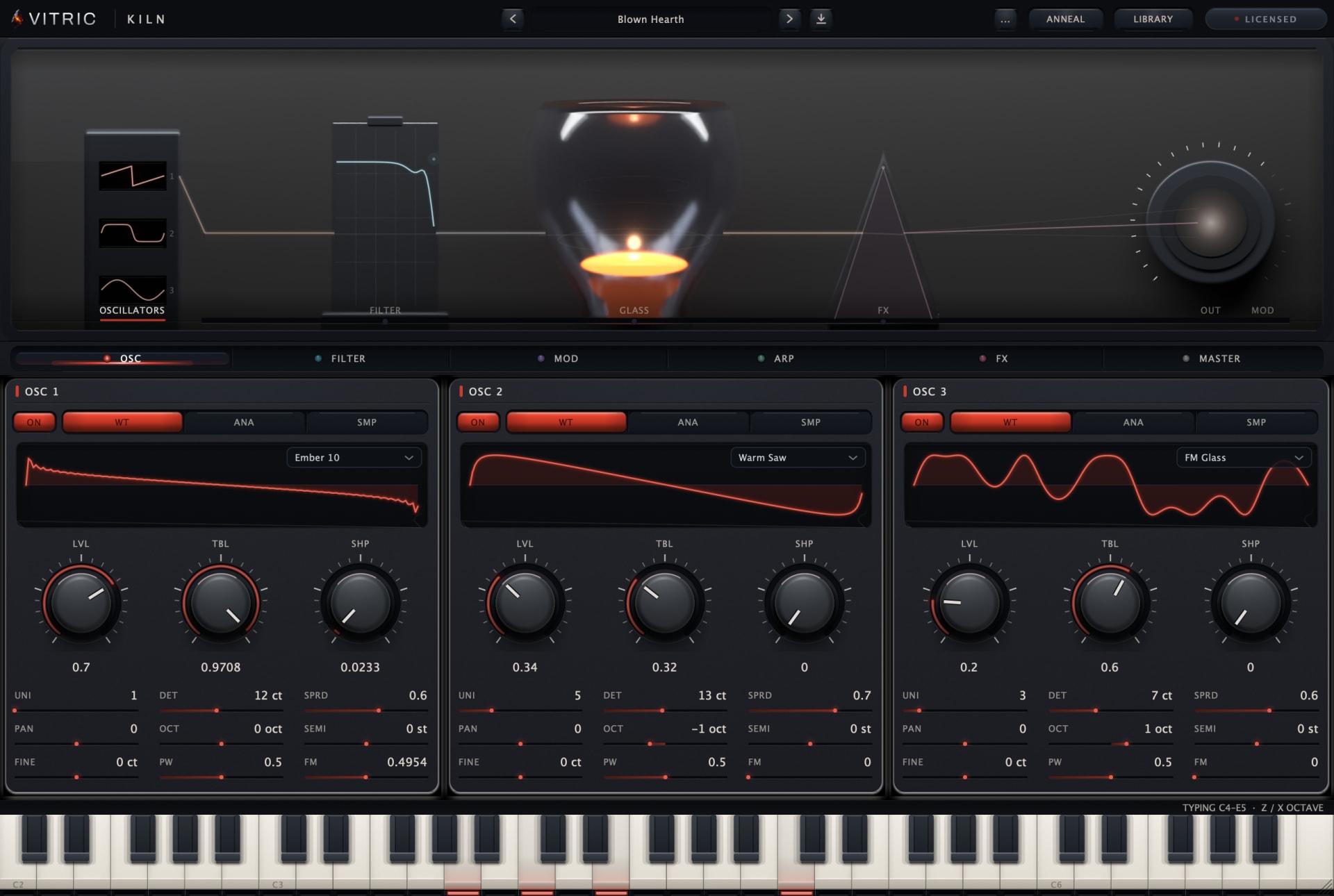
An instrument has a different destination. For example, Kiln Synthesizer belongs in the Channel Rack as an instrument and needs MIDI notes. Do not put it in a Mixer effect slot. If a plugin shows in Plugin Manager but not in the menu you are using, check its type there: effects and instruments appear in different menus.
- Open Bevel's license panel and choose Start free trial. The trial page opens with the product and machine code filled in.
- Sign in through the link sent to your email, check the details, then choose Email my trial.
- Save the attached license file. On that same computer, choose Load file in the plugin's license panel and select it.
The trial gives you every feature for three days from license issuance, with periodic internet verification. No payment details are needed and there is no automatic charge. Play the track, make an audible EQ adjustment, then compare with bypass. The Bevel EQ manual explains its bands and controls.
Why is the plugin not showing up?
The scan found nothing
Confirm that the installer finished and the .vst3 plugin exists in the system folder. Close FL Studio before reinstalling the current package, then reopen it and run Find plugins again. Clear any search filter in the Browser. A plugin that is not a favourite may have scanned correctly without appearing in your favourites list; look in the Plugin database under Installed.
The plugin is listed with an error
Check the plugin's Status in Plugin Manager before retrying. Run Find plugins with Verify plugins on, plus Rescan previously verified plugins and Rescan plugins with errors. The first makes FL Studio re-check plugins it already knows, which is what you want after an update. Keep the error text if it fails again.
Is it a 32-bit plugin or a VST2 file?
Bit depth and format are separate. A plugin can be 64-bit and still use VST2. Older Windows VST2 plugins often arrive as .dll files in a custom folder; a VST3 plugin uses .vst3. Vitric does not ship VST2 or 32-bit builds. Use its 64-bit VST3 version rather than trying to bridge an old format or renaming a file extension.
The window opens, but the track is silent
A visible plugin has already passed the discovery stage. Check the Mixer routing, mute and bypass states, then the plugin's license panel. A trial that has expired or needs internet verification is a licensing issue, not a missing scan path. Reinstalling does not restart the trial.
Still stuck?
Contact Vitric support with the product and version, Windows or macOS version, FL Studio version, plugin format and exact scan message. On Mac, include whether the computer uses Intel or Apple Silicon. Those details distinguish a scan problem from a compatibility or activation problem.
Using another DAW? Follow the guides for installing plugins in Ableton Live or installing AU plugins in Logic Pro.