How to install AU plugins in Logic Pro
Install AU plugins in Logic Pro, find the Components folder and fix validation failures with Reset & Rescan. Includes Apple Silicon and Vitric trial setup.
To install a plugin in Logic Pro, install its Audio Unit (AU) version, reopen Logic and let it validate. Audio effects then appear in a channel strip's Audio FX menu; instruments appear in the Instrument slot. Logic does not load VST3 or AAX plugins.
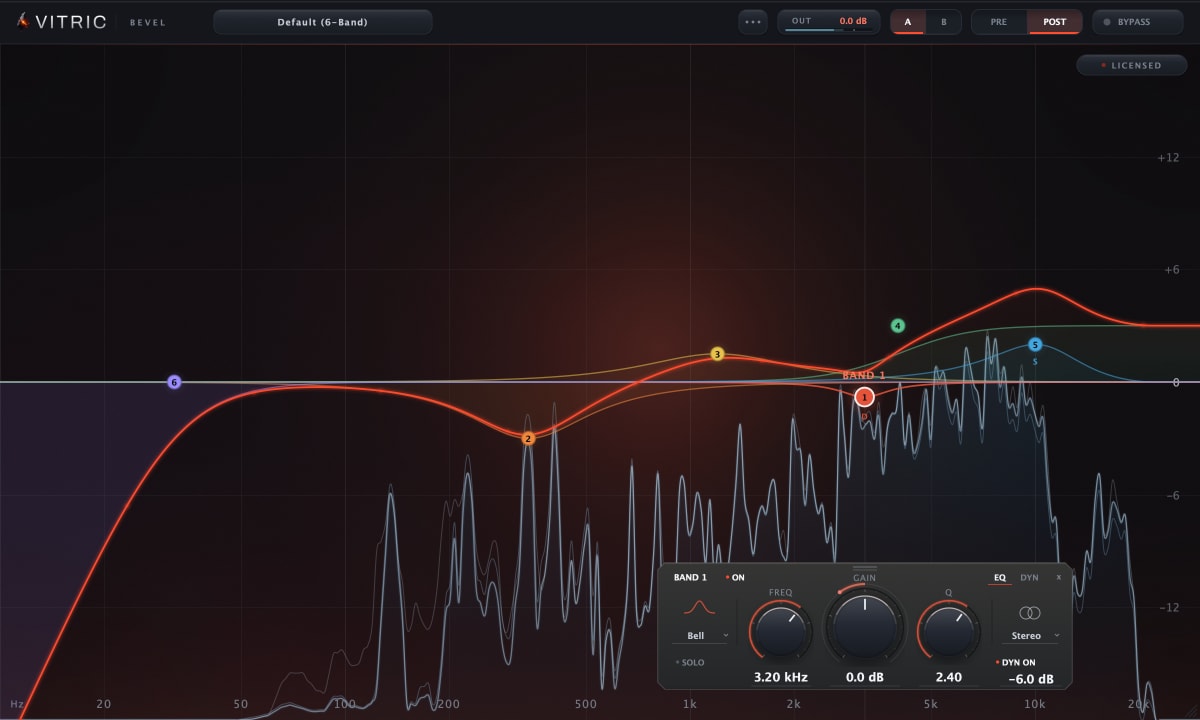
This walkthrough uses Vitric's Bevel EQ, available with a free 3-day trial. Install it and confirm that Logic sees it before requesting the trial license. The three days start when the license is issued, not when you first press Play.
Which installer and format do you need?
Download the Mac .pkg. Vitric's Mac installers include AU, VST3 and AAX, with support for Intel and Apple Silicon. Logic uses the AU component from that package. VST3 is for compatible VST hosts, and AAX is for Pro Tools. Moving either into an AU folder does not convert it into an Audio Unit.
Vitric's minimum plugin requirements are macOS 10.15 on Intel or macOS 11 on Apple Silicon. Your Logic Pro version may require a newer macOS. Use the current installer and a compatible 64-bit host; an old 32-bit AU from another vendor will need an updated build for modern Logic.
Where is the AU Components folder?
| Location | Purpose |
|---|---|
/Library/Audio/Plug-Ins/Components | System AU folder used by Vitric's installer |
~/Library/Audio/Plug-Ins/Components | User AU folder that some other installers or manual installations use |
In Finder, choose Go > Go to Folder and paste the system path. A Vitric AU is a bundle with the extension .component. The tilde in the second path means your home folder; these are two different Library folders.
Let the installer place the component. Do not copy it into Logic's application bundle or into both Library folders. Multiple versions of the same AU can make it hard to tell which copy a host has registered. Vitric's Mac package installs plugins, so the absence of a standalone app in Applications is expected.
Install the AU and let Logic validate it
- Save your project and quit Logic Pro. Get the current Bevel EQ Mac installer, run the package and let it finish. Keep AU selected if you customise the installed formats.
- Reopen Logic. Let its Audio Unit scan finish. Validation checks whether the component can be loaded and used by the host; it is separate from activating your Vitric license.
- Open Plug-in Manager. Go to Logic Pro > Settings > Plug-in Manager. Older versions call Settings Preferences.
- Find Bevel EQ. Click the manufacturer's name in the left column to filter the list. Check the Compatibility column: a plugin that passed validation shows no warning, and one that did not shows “failed validation”.
If the component is installed but absent from the manager, quit Logic, restart the Mac and reopen Logic. This gives macOS another chance to register the new Audio Unit. A folder containing a component is evidence of installation, not proof that validation succeeded.
Put the plugin on the right channel strip
On an audio track with a region to play, open an empty Audio FX slot. The menu is grouped by manufacturer, so look for Bevel EQ under Vitric's name, then choose the channel configuration offered for the track. Start with a normal audio track so you can hear an EQ change without setting up additional routing.
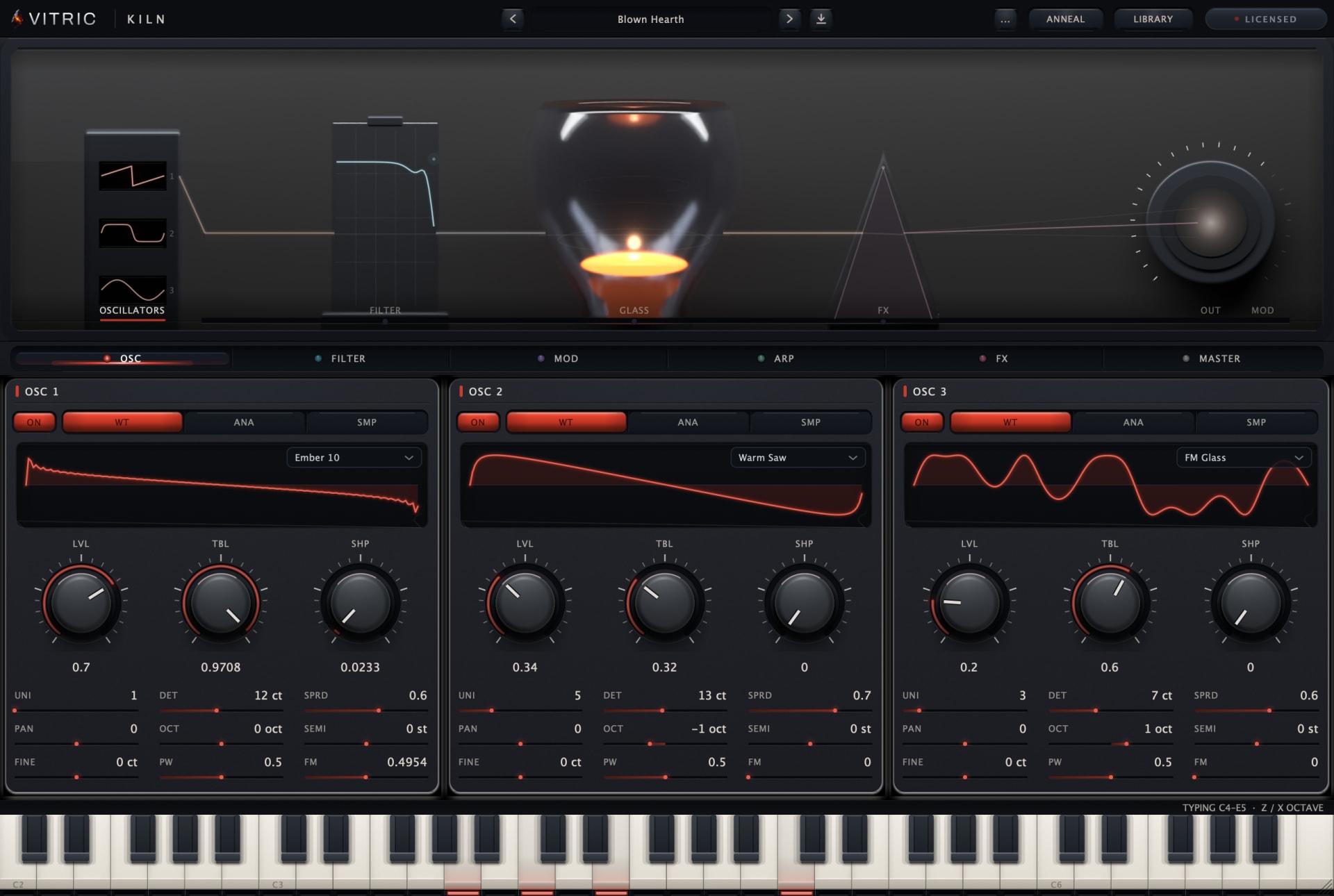
For Kiln Synthesizer, create a software instrument track and open its Instrument slot instead. Find Kiln under the manufacturer's name there, load it and play MIDI notes. Instruments and audio effects live in different menus even when they are both Audio Units.
Start the free 3-day trial
- Open Bevel's license panel and choose Start free trial. The page opens with the product and this Mac's machine code filled in.
- Sign in through the email link, check those details and choose Email my trial.
- Save the license attachment, then choose Load file inside Bevel on the same Mac.
The trial includes every feature for three days from issuance and needs periodic internet verification. No payment details are required and there is no automatic charge. Play the track and compare an EQ adjustment with bypass. The Bevel EQ manual explains the controls once you are running.
How do you fix an AU validation failure?
Read the result in Plug-in Manager. A plugin that is missing entirely needs a format or installation check; one listed as failed needs attention to the validation result. Repeatedly opening the Audio FX menu will not revalidate a failed component. If the Compatibility column says “not authorized” instead, that is a licensing step with the plugin's maker, not a validation problem.
- Check compatibility and update. Make sure the plugin supports your macOS and processor. Quit Logic and install the current Mac package if yours is older or the installation did not finish.
- Rescan the affected plugin. Reopen Logic's Plug-in Manager, select the failed entry and click Reset & Rescan Selection. Let validation finish before loading it again. If the plugin is not listed in Plug-in Manager at all, Apple's next step is Full Audio Unit Reset in the same window, then closing and reopening Logic so it rescans every Audio Unit.
- Keep a repeated failure's details. Save the exact result or a screenshot and contact support with the plugin, Logic and macOS versions. Include whether this is an Intel or Apple Silicon Mac.
Do not force-enable a plugin that repeatedly fails validation just to make it appear in a session. Try the targeted rescan first: it gives you a clearer result without disturbing the rest of your plugin collection.
Do Apple Silicon Macs need Rosetta?
Vitric's current Mac package supports Apple Silicon natively as well as Intel. Start with Logic running natively; Rosetta is not a requirement for these builds. If you already run Logic under Rosetta for a different plugin, tell support when reporting a problem.
Older Intel-only Audio Units from other vendors may have different compatibility requirements. Check that vendor's guidance for your Logic and macOS versions before changing how the whole DAW launches. A validation failure by itself does not prove Rosetta is the answer.
What changes in a sandboxed AU host?
An AU host can run plugins in a separate process or restrict which files they can access. Separate processes and file-access sandboxing are different mechanisms; a plugin working in one host does not prove another host has the same access. The component still belongs in the standard installation folder, not in a host's private container.
If a plugin loads but cannot read its trial license, use its Load file button to select the saved attachment through the file picker. If that fails, report the host and exact error to support. Do not move license files into guessed container paths or change system security settings to work around an unexplained failure. Scanning the AU and loading a license file are separate steps.
Still missing or silent?
Check that an effect is in Audio FX and an instrument is in the Instrument slot, then check audio or MIDI routing and license status. Expired trials stop processing while keeping project settings; reinstalling does not restart a trial. Vitric support can help with the exact scan, load or activation message.
For another host, follow the guides to installing plugins in Ableton Live or installing VST3 plugins in FL Studio.