

Plinth Subharmonic Synthesizer
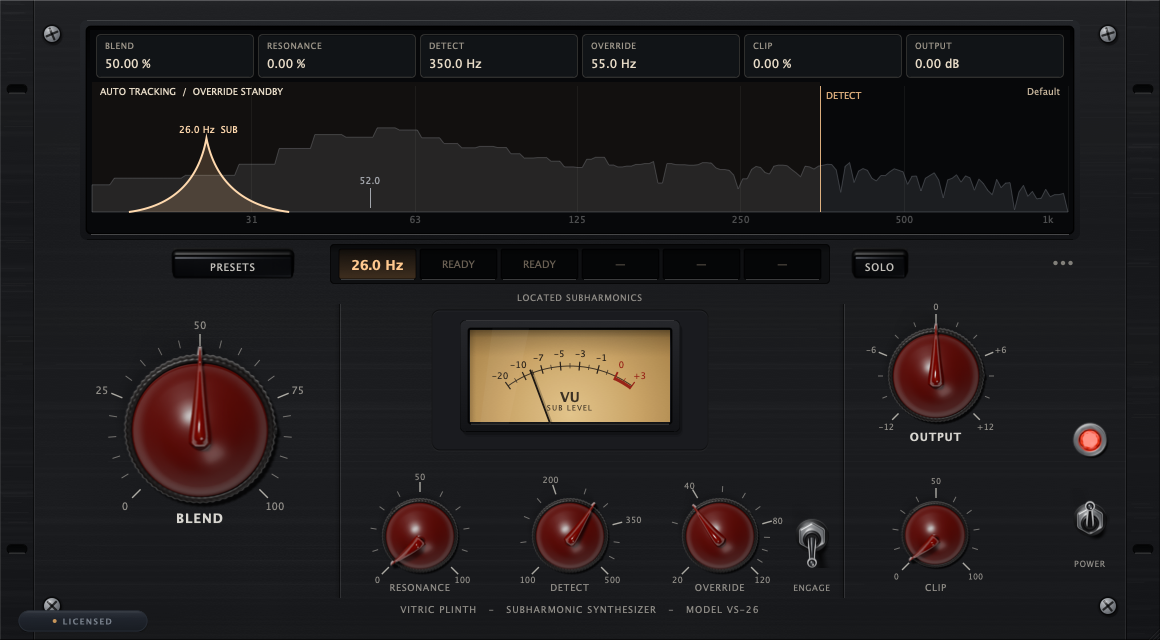
Plinth Subharmonic Synthesizer adds a new sub (deep bass) under your sound. It listens to the low end below the DETECT line and finds the notes that are actually there. For each note it takes the fundamental (the lowest, strongest frequency) and generates a clean sine tone exactly one octave lower, at half that frequency. The new tone is phase-locked: it moves in step with the original, so the two never cancel each other out. BLEND adds that sub to your untouched dry signal; it does not turn the dry signal down as you turn it up. There is no compressor and no ducker inside: what you hear is your track plus a real sub. It is for 808s, bass, kicks and mix buses that need weight.
This manual covers Plinth Subharmonic Synthesizer 0.2.13 on macOS and Windows, in VST3, AU and AAX.
Quick start
- Insert Plinth Subharmonic Synthesizer on a bass, 808, kick or bus, before any compressor or limiter on the same track, so they catch the extra level the sub adds. If the chip at the bottom left reads LOCKED, Plinth stays silent until you activate it or start a trial (see Installation and activation).
- Play a passage with a clear bass part or kick, with POWER on, SOLO off and ENGAGE off. Leave DETECT at 350 Hz.
- Watch the screen: located fundamentals get markers, and the LOCATED SUBHARMONICS chips light with the subs Plinth is generating.
- Turn BLEND down to 0 %, then raise it until the low end feels heavier but the part still sounds like itself.
- Press SOLO to hear only what Plinth adds. Turn SOLO off before you judge the whole mix.
- Watch your output level: the added sub raises peaks. Trim with OUTPUT, and use CLIP only when you want soft clipping on the combined signal.
What's new in 0.2.13
- A muted chip no longer stops new notes getting their sub.
- With POWER off, the SUB LEVEL meter rests.
- On high-refresh displays the screen draws at 80 frames a second and uses much less CPU.
- A reopened session shows its preset's name.
- The update notice is quieter.
- Security improvements to license file handling.
What's new in 0.2.11
A free fix for every Plinth owner. Frequency readouts at 100 Hz and up now show whole numbers instead of being cut off: a 134 Hz sub reads 134 Hz in its chip and on the screen, where it used to read 133.979 and get cut short. Below 100 Hz the readouts keep one decimal. Nothing about the sound changed, and your songs open exactly as before.
What's new in 0.2.10
What changed since 0.2.0:
- Your own presets in the PRESETS menu.
- The face shows what Plinth does. Plinth runs three generators, so only the first three LOCATED SUBHARMONICS chips respond; the last three stay dark. DETECT's tooltip now says where tracking ends (about 385 Hz). Saved sessions sound the same.
- Update notice. The license chip tells you when a new version is out (see Updates).
- Sessions always reopen as saved, after every update and under every license state.
- Subscriptions renew by themselves in the plugin.
- Fixes: a crash on macOS 10.15 and 11; Windows user names with accented characters; a license activated in Logic Pro, GarageBand or MainStage that your other DAWs could not see, and the other way round.
The window
Plinth has a screen at the top, the PRESETS, LOCATED SUBHARMONICS and SOLO row under it, and the controls below. Drag the corner to resize the window, from 1000 x 552 up to 1740 x 960 pixels; it opens at 1160 x 640 and keeps its shape.
The screen
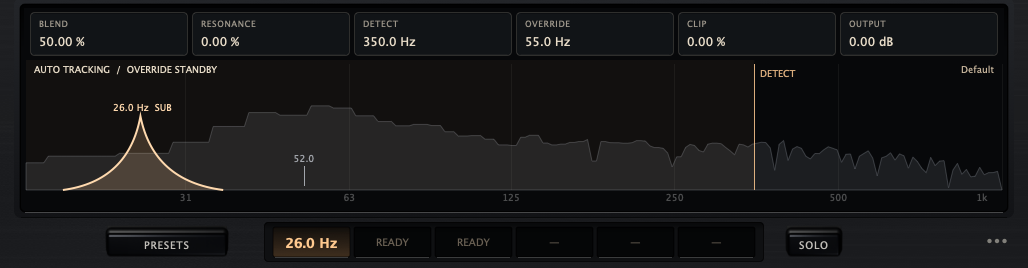
- Value strip. Click a value to type it.
- Status. What Plinth is doing.
- Generated sub. Each bright arch is a sub being added; the thin numbered lines are the fundamentals.
- DETECT line. The top of the region Plinth listens to.
- Preset name. Default, a factory preset, or Custom.
- PRESETS. Factory presets and your own.
- LOCATED SUBHARMONICS. The three generators.
- SOLO. Hear only the added sub.
- ... (Options). Tooltips, update checks and shortcuts.
The spectrum shows your input. Each located fundamental gets a thin line with its frequency, and each bright arch is a sub Plinth is generating right now, an octave below one of them. Silence leaves an empty trace.
- The value strip shows BLEND, RESONANCE, DETECT, OVERRIDE, CLIP and OUTPUT, and follows the knobs and your DAW's automation. Click a value, or focus it and press Return, to type an exact value in %, Hz or dB. Return applies and Esc cancels; a wrong unit or a value out of range stays in the field with an error cue and changes nothing.
- The status reads AUTO TRACKING / OVERRIDE STANDBY in normal use: Plinth is tracking on its own and the manual override is off. It reads MANUAL while ENGAGE is on and POWER OFF when POWER is off. While SOLO is on, / SUB SOLO is added.
- The DETECT line sets the top of the region Plinth listens to (100 to 500 Hz). Drag it from anywhere in its grab area; it does not jump to the pointer. Hold Shift for ten times finer moves. The wheel or arrow keys move it a semitone, one piano key (Shift: a tenth of a semitone). Double-click it to go back to 350 Hz.
- Above about 385 Hz the line still widens what Plinth listens to, but a higher note is read an octave low, so its sub lands two octaves down.
- The preset name reads Default at the defaults, the source and name of a factory preset when the settings match one (for example Mix Bus / Gentle Ground), and Custom otherwise. Your own presets also show Custom once loaded. While you turn a knob, this spot shows its value for a moment.
- The LOCATED SUBHARMONICS chips show the frequency of the sub each of the three generators is making, READY while it waits for a note, or MUTE when muted. Click a chip to mute or unmute that generator (or focus the row, pick a chip with the left and right arrows and press Space or Return).
- The last three tiles are reserved. They stay dark and do not respond. Your DAW's automation list shows them as Chip 4 to Chip 6; they change nothing.
The controls
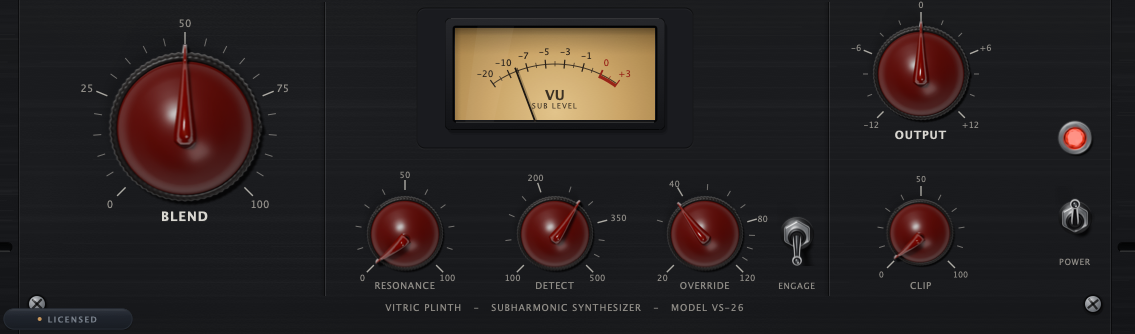
- BLEND. How much sub is added.
- VU. The level of the added sub.
- RESONANCE. Body, and overtones for small speakers.
- DETECT. The listening region.
- OVERRIDE and ENGAGE. A fixed fundamental.
- OUTPUT. The final trim.
- CLIP. Soft clip on the sum.
- POWER. Bypass.
- License chip. LICENSED, TRIAL or LOCKED.
| Control | What it does | Range | Default |
|---|---|---|---|
| BLEND | The amount of generated sub added to your dry signal. At 100 % the sub follows the level of your dry low end. Start mid-dial; heavy 808 and kick work can go higher. | 0 to 100 % | 50 % |
| DETECT | The top of the region Plinth listens to; same as dragging the DETECT line. Lower it to focus on the bass. Plinth tracks notes up to about 385 Hz; a higher note gets its sub two octaves down instead of one. | 100 to 500 Hz | 350 Hz |
| RESONANCE | Adds body and ring to the generated sub. Past halfway it also adds soft overtones of the sub (partials), so phones and laptop speakers that cannot play the sub still suggest it. The sub itself always stays. | 0 to 100 % | 0 % |
| OVERRIDE | The source fundamental Plinth uses while ENGAGE is on. 80 Hz aims the generator at a 40 Hz sub. | 20 to 120 Hz | 55 Hz |
| ENGAGE | Replaces automatic tracking with one sub at a fixed pitch, an octave below OVERRIDE, for parts that make the tracker hunt (jump between pitches). The sub still rises, falls and stops with your track. Key E. | On or off | Off |
| CLIP | Soft clipping on the final output, your track plus the sub: it rounds off peaks instead of letting them go over 0 dBFS, the digital maximum. Adds no latency. At 0 % it is off. | 0 to 100 % | 0 % |
| OUTPUT | The final trim. | -12 to +12 dB | 0 dB |
| SOLO | Plays only the generated sub, at its current BLEND level. Key S. | On or off | Off |
| POWER | True bypass, click-free: off passes the input untouched. The lamp above the switch is lit while Plinth is on. | On or off | On |
| VU | The peak level of the sub being added, not of the whole mix. The needle rests until the added sub peaks above about -23 dBFS (decibels below the digital maximum), so a quiet sub can show on the screen while the needle stays down. | ||
| ... (Options) | Opens a menu: Show tooltips, Check for updates and the keyboard shortcut sheet. The first two apply to every Vitric plugin on this computer. |
How Plinth behaves
- Zero latency. Plinth reports and adds no latency, always.
- The sub arrives just after the note starts. Plinth has to hear a few cycles of a note before it trusts the pitch, so the sub fades in. Under an 80 Hz note, the 40 Hz sub reaches 90 % of its level in about 170 ms. Nothing is delayed or time-shifted.
- The sub is mono and dead center. It cannot cancel when a club system or phone plays your mix in mono, and it suits vinyl, which needs centered bass. Your dry signal keeps its stereo image.
- It needs pitch. Unpitched or very short sounds may not open a generator.
Keyboard and mouse
Keys work when the Plinth window has keyboard focus: click an empty part of the window once. While you type in a value field, the field keeps the keys.
| Action | Mac | Windows |
|---|---|---|
| Open the presets menu | P | P |
| SOLO on or off | S | S |
| ENGAGE on or off | E | E |
| Previous or next factory preset | [ or ] | [ or ] |
| Show or close the shortcut sheet | ? / Esc | ? / Esc |
| Fine drag on a knob or the DETECT line | Shift + drag | Shift + drag |
| Step a knob (Shift for fine) | Mouse wheel or arrow keys | Mouse wheel or arrow keys |
| DETECT line a semitone (Shift: a tenth of a semitone) | Mouse wheel or arrow keys | Mouse wheel or arrow keys |
| Reset a knob | Double-click, or Cmd + click | Double-click, or Ctrl + click |
| Reset the DETECT line to 350 Hz | Double-click it | Double-click it |
| Type an exact value | Click a value in the strip | Click a value in the strip |
| Mute or unmute a generator | Click its chip | Click its chip |
In Pro Tools, fine drag is Cmd + drag (Ctrl on Windows) and reset is Option + click (Alt on Windows).
Recipes
These are starting points from the factory presets. Every source is different, so set BLEND in context and compare with POWER.
Add weight under a full mix
| Setting | Value |
|---|---|
| Start from | Gentle Ground |
| BLEND | 28 % |
| DETECT | 300 Hz |
| RESONANCE | 15 % |
| CLIP | 10 % |
| Listen for | A fuller low end with the kick and bass still separate; recheck your loudness, since the sub adds level |
Listen with SOLO to hear exactly what is being added.
Thicken a bass DI (recorded straight into the interface)
| Setting | Value |
|---|---|
| Start from | Studio Floor |
| BLEND | 50 % |
| DETECT | 350 Hz |
| RESONANCE | 20 % |
| CLIP | 20 % |
| Listen for | More weight under each note while the bass still sounds like a bass |
Make an 808 hit the floor
| Setting | Value |
|---|---|
| Start from | Concrete Floor |
| BLEND | 100 % |
| DETECT | 200 Hz |
| RESONANCE | 30 % |
| CLIP | 65 % |
| OUTPUT | -1 dB |
| Listen for | The 808 felt on big speakers; check it on small ones too |
CLIP catches the extra peak level the sub adds.
Extend a kick
| Setting | Value |
|---|---|
| Start from | Kick Extension |
| BLEND | 70 % |
| DETECT | 160 Hz |
| RESONANCE | 20 % |
| CLIP | 40 % |
| OUTPUT | -0.5 dB |
The sub fades in over the first part of the hit, so it lengthens the kick's body and tail rather than its click.
Steady a part on one note
| Setting | Value |
|---|---|
| ENGAGE | On |
| OVERRIDE | The part's note, for example 110 Hz (an A) for a 55 Hz sub, or 82.4 Hz (low E on a guitar) for a 41.2 Hz sub |
ENGAGE holds one pitch, so use it on a part that stays on one note, such as a kick, a drone or a one-note 808, when the tracker hunts (jumps between pitches). On a moving bass line, leave ENGAGE off and lower DETECT instead.
Presets
32 factory presets under PRESETS, grouped by source:
| Source | Presets |
|---|---|
| 808 | First Brick, Concrete Floor, Slow Pour, Basement Key, Round Weight, Iron Column, Soft Landing, Deep Set |
| Bass DI | Studio Floor, Fat String, Quiet Anchor, Motor City Add, P Pickup Plus, Half Step Down, Upright Shadow, Session Deep |
| Synth Bass | Analog Basement, Reese Under, Acid Footing, Warm Square, Dub Stack, Mono Pillar |
| Kick | Kick Extension, Four Floor Boost, Punch Footer, Long Tail Kick, Tight Thump |
| Mix Bus | Gentle Ground, Master Footing, Club Check, Vinyl Safe, Broadcast Floor |
A preset sets BLEND, DETECT, RESONANCE, CLIP and OUTPUT, and unmutes every chip. It leaves POWER, SOLO, ENGAGE and the OVERRIDE frequency alone, so check those if a preset sounds unexpected.
Your own presets
- Open PRESETS and choose Save preset..., then type a name.
- Your presets appear under User in the same menu, after the factory presets.
- Rename preset and Delete preset manage the list; Show preset folder opens the folder on disk.
A saved preset holds BLEND, DETECT, RESONANCE, CLIP, OUTPUT and the chip mutes. Like the factory presets, it leaves POWER, SOLO, ENGAGE and the OVERRIDE frequency alone. [ and ] step through the factory presets only. The files are in ~/Library/Application Support/Vitric Audio/Presets/Plinth Subharmonic Synthesizer on macOS and %APPDATA%\Vitric Audio\Presets\Plinth Subharmonic Synthesizer on Windows. Saving and loading your own presets needs an active license or trial; factory presets always work.
Specifications
- Generation: up to three phase-locked sine subs, each one octave below a located fundamental; mono and centered.
- Tracking: fundamentals up to about 385 Hz below the DETECT line (100 to 500 Hz); manual override 20 to 120 Hz.
- BLEND 0 to 100 %, RESONANCE 0 to 100 %, CLIP 0 to 100 %, OUTPUT ±12 dB.
- Latency: none.
- Window: 1000 x 552 to 1740 x 960.
- Formats: VST3 and AAX on macOS and Windows; AU on macOS; an optional standalone app on Windows.
- Systems: macOS 10.15 or later on Intel, macOS 11 or later on Apple Silicon; Windows 10 or later, 64-bit.
Not included
- Plinth generates one octave down; there is no second octave.
- There is no external sidechain and no compressor or ducker.
- Plinth works on mono and stereo tracks. It does not support surround or Atmos formats.
Installation and activation
Install
- Download the installer from vitricaudio.com/downloads or your account at vitricaudio.com/account.
- Save your work and quit your DAW.
- Run the
.pkg(Mac) or.exe(Windows). - Open your DAW. If Plinth Subharmonic Synthesizer is not listed, rescan plugins.
Use AU in Logic Pro, AAX in Pro Tools and VST3 in other DAWs. The Mac installer puts the plugins in the standard folders:
- AU:
/Library/Audio/Plug-Ins/Components - VST3:
/Library/Audio/Plug-Ins/VST3 - AAX:
/Library/Application Support/Avid/Audio/Plug-Ins
On Windows:
- VST3:
C:\Program Files\Common Files\VST3 - AAX:
C:\Program Files\Common Files\Avid\Audio\Plug-Ins - Standalone app (optional in the installer):
C:\Program Files\Vitric Audio\Plinth Subharmonic Synthesizer
Activate your license
Until you activate a license or start a trial, Plinth passes no sound, the chip reads LOCKED and a large LOCKED mark sits over the window. The license card opens by itself once each time you open the window.
- Click the license chip to open the license card.
- Paste the
VT-...key from your purchase email or account page. Lost it? vitricaudio.com/license can resend your keys. - Click Apply license. The chip changes to LICENSED.
A full license works offline after activation and runs on up to three computers at a time.
Activate a computer that is offline
- On the offline computer, open the license card and click Copy code to copy its machine code (it starts with
VTM1-). - On any computer that is online, open vitricaudio.com/license, enter your key and the machine code, and download the license file.
- Copy the file to the offline computer, open the license card and click Load file.
Try it free for 72 hours
- Open the license card and click Start free trial. The trial page opens with the product and machine code filled in.
- Sign in with the emailed link and click Start my 72-hour trial.
- Click Copy trial key, paste it into the license card and click Apply license. Or click Download license file and use Load file. A backup copy is emailed to you.
The trial has every feature, runs 72 hours from issue and needs an internet connection while you use it. There is one trial per product, person and computer, and no payment details are needed. When it ends, Plinth goes silent but keeps every setting in your projects.
Updates
Plinth asks vitricaudio.com once a day, while its window is open, whether a newer version exists, and sends only the product, your version and your platform. When one is out, the license chip reads UPDATE and the new version number.
- Click the chip. The license card shows UPDATE AVAILABLE with the new version and yours.
- Click Download (the button shows the new version number) to open the product page and get the installer. Or click Later: the chip goes back to its license text until the next version, and the card keeps the notice.
- Quit your DAW and run the new installer over the old one. Your sessions reopen as saved.
Turn off Check for updates in Options to stop the checks.
Troubleshooting
Plinth does not appear in my DAW
Rescan plugins and restart the DAW. In Logic Pro, use Logic Pro > Settings > Plug-in Manager and Reset & Rescan Selection. On Windows, make sure your DAW scans C:\Program Files\Common Files\VST3.
There is no sub
- The license chip reads LOCKED: Plinth has not been activated, the trial ended, or the license needs attention. Click it. A trial needs an internet connection while you use it.
- Check POWER, BLEND and the chip mutes.
- The sound may have no clear pitch below the DETECT line. Lower DETECT to focus on the bass, or use ENGAGE and OVERRIDE.
I cannot hear the sub, but the screen shows it
An octave below a bass note is often 20 to 50 Hz, lower than laptop speakers, earbuds and many small monitors can play. Check on headphones or speakers with a subwoofer, and watch the screen. To help small speakers, raise RESONANCE past halfway.
The sub wobbles or jumps between notes
The tracker is hunting: something above the bass, such as a chord or a kick's click, is confusing it. Lower DETECT so Plinth hears only the bass. For a part on one note, use ENGAGE and OVERRIDE.
The low end sounds muddy
Lower BLEND, or lower DETECT so only the lowest notes get a sub. On a full mix, start from Gentle Ground.
The sub sits two octaves down
The note is above about 385 Hz, so Plinth reads it an octave low and its sub lands two octaves under the note. Set DETECT to 385 Hz or lower so Plinth listens only to the bass.
The output got louder
BLEND adds signal, so peaks rise. Set OUTPUT by ear and by your meters, and use CLIP if the peaks go over.
Shortcuts do nothing
Click an empty part of the Plinth window once so it has keyboard focus. Some DAWs keep certain keys for themselves; use the mouse for those.
The presets menu says "User (unlock to use)"
Your own presets need an active license or trial. Activate Plinth, and the menu items come back.
I lost my license key
Enter your email at vitricaudio.com/license to have your keys sent again, or find them in your account at vitricaudio.com/account.
Support
Write to support@vitricaudio.com with your Plinth version, operating system, DAW and version, plugin format and the exact error if there is one.
Every purchase comes with a 14-day refund, no questions asked.