
Chamfer De-Esser plugin
Soften harsh S sounds as the vocal level changes.
Plugin for Mac & Windows.
Try it free on your computer.
A de-esser plugin for harsh sibilance that changes with the vocal level. Learn a phrase, set Amount and cap the reduction with Range. Audition what is removed and see where each ess is detected.
Sale price
Pay by card, PayPal, Apple Pay or Google Pay.
By buying, you agree to the EULA and Terms of Service.
Try free for 3 daysOne-time purchase · 3 computers at a time · 14-day money-back guarantee
Instant download: your license key arrives by email right after payment.
Or get all 12 with Vitric Access, $20 a month
Secure checkout by Paddle. No card required for the trial.
Mac & Windows · VST3, AU and AAX · version 0.2.10
Prices in US dollars. Checkout charges in your local currency where available. US and Canadian sales tax is added at checkout. In the EU, UK, Japan and Australia, tax is already included.
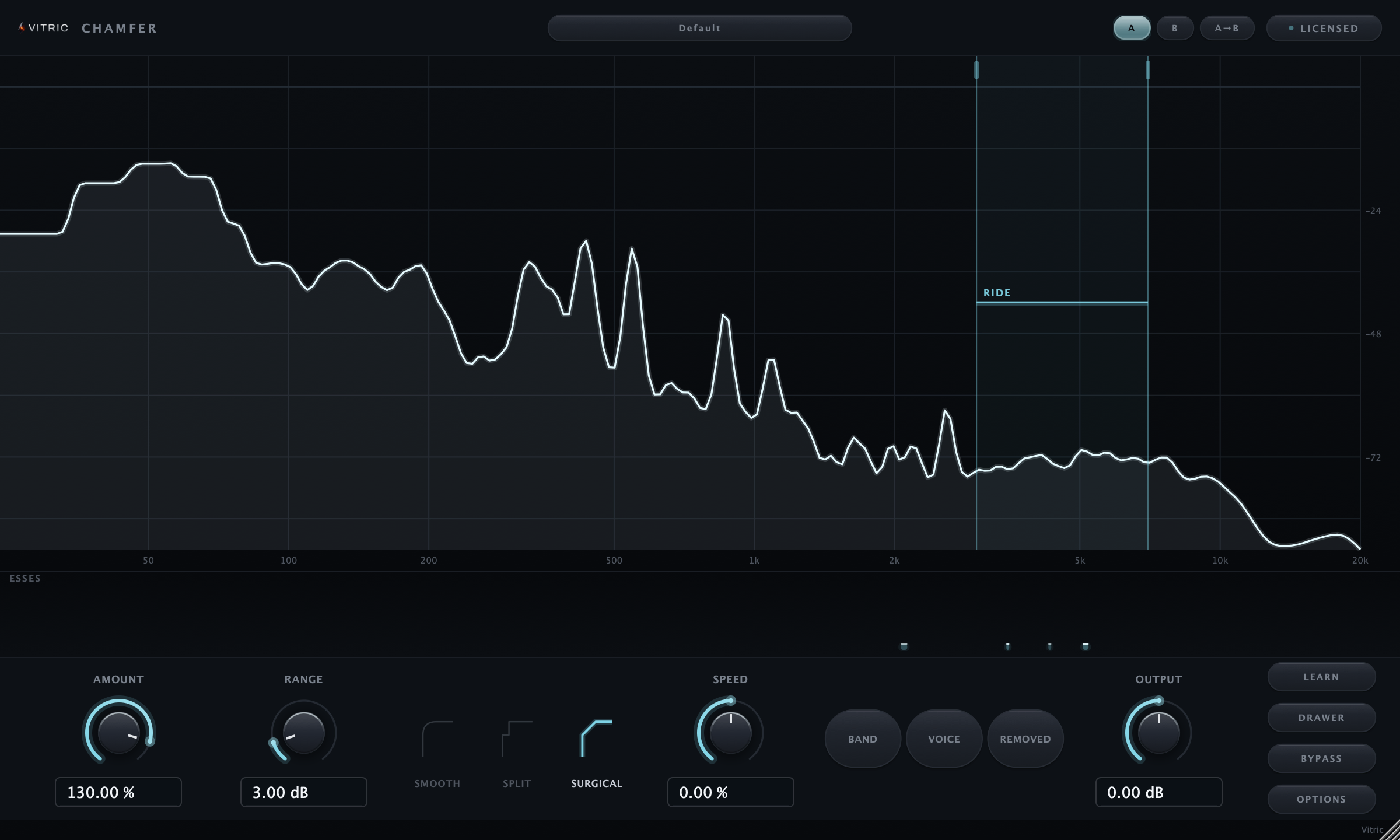
The trial uses the full plugin. Install it in your DAW, then start the 3-day trial from its license screen. No card required.
Read the Chamfer manualIN MOTION
Chamfer, running.
IN YOUR SESSION
Set the band. Let the threshold follow.
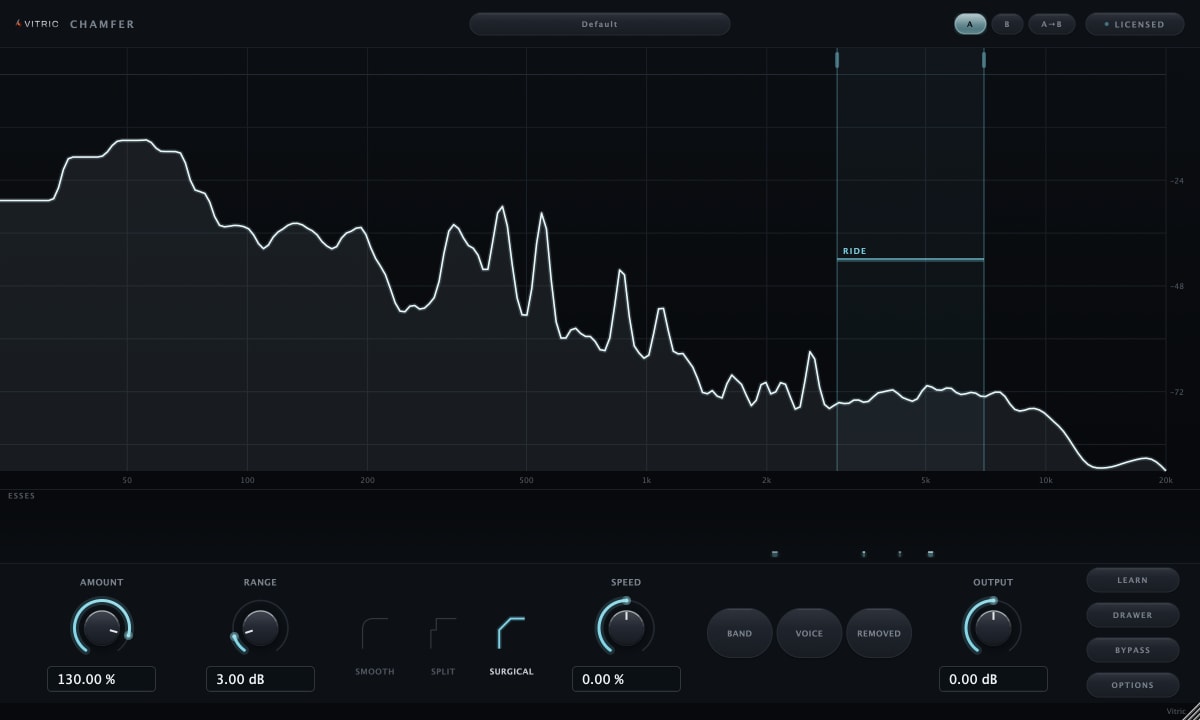
A vocal changes level between words and sections. Chamfer’s Relative threshold follows the performance instead of staying at one fixed level. Play a representative phrase and press LEARN to place the band, calibrate the threshold and suggest an Amount. Then set how softly the esses should sit and how much reduction Range allows. The RIDE line shows the operating threshold, while the event strip lets you inspect detected esses. Compare the full phrase and the Removed signal as you adjust.
A CLOSER LOOK
Inside Chamfer.
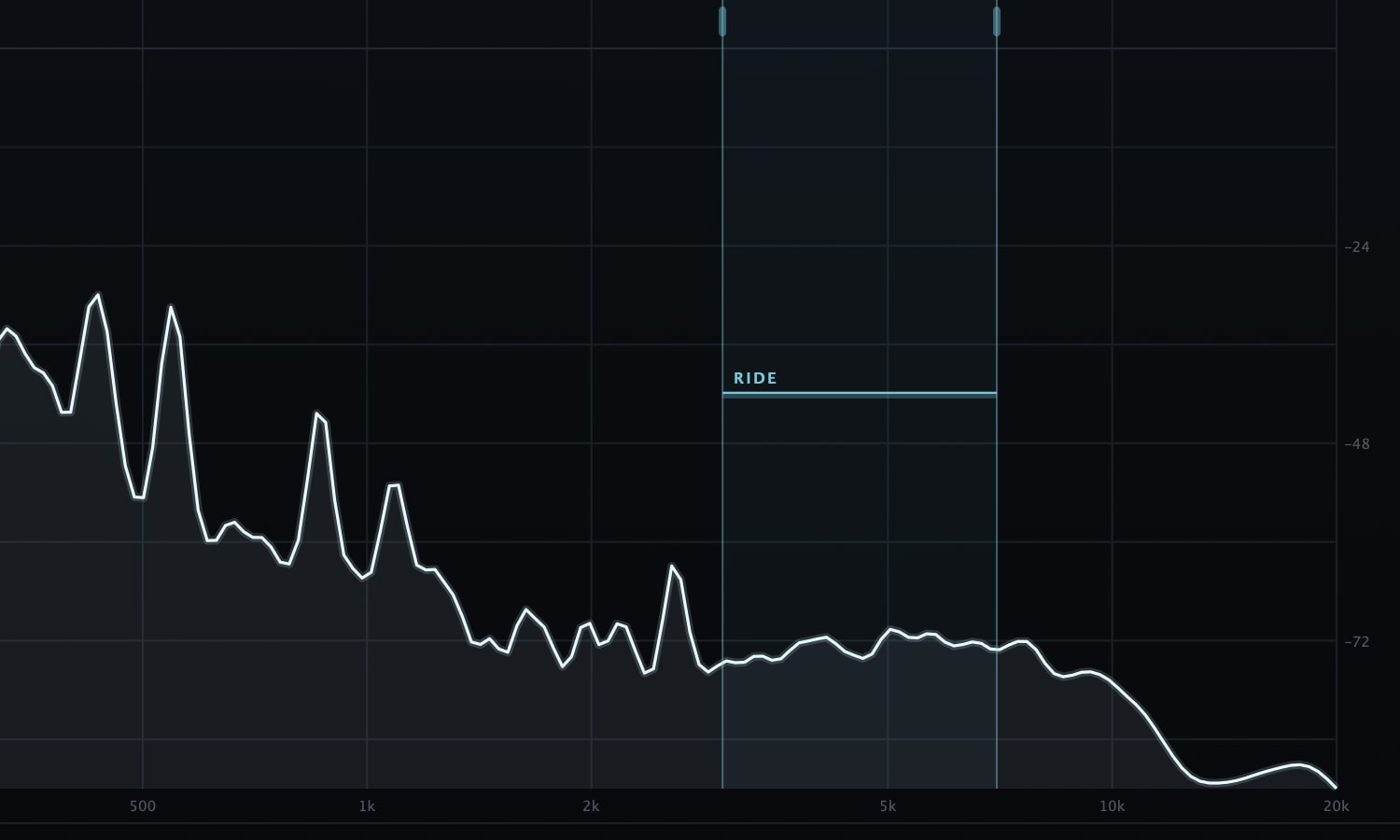
The ride line
See the detector’s operating threshold across the band. In Relative mode it follows the program level; detection also considers the characteristics of each event.
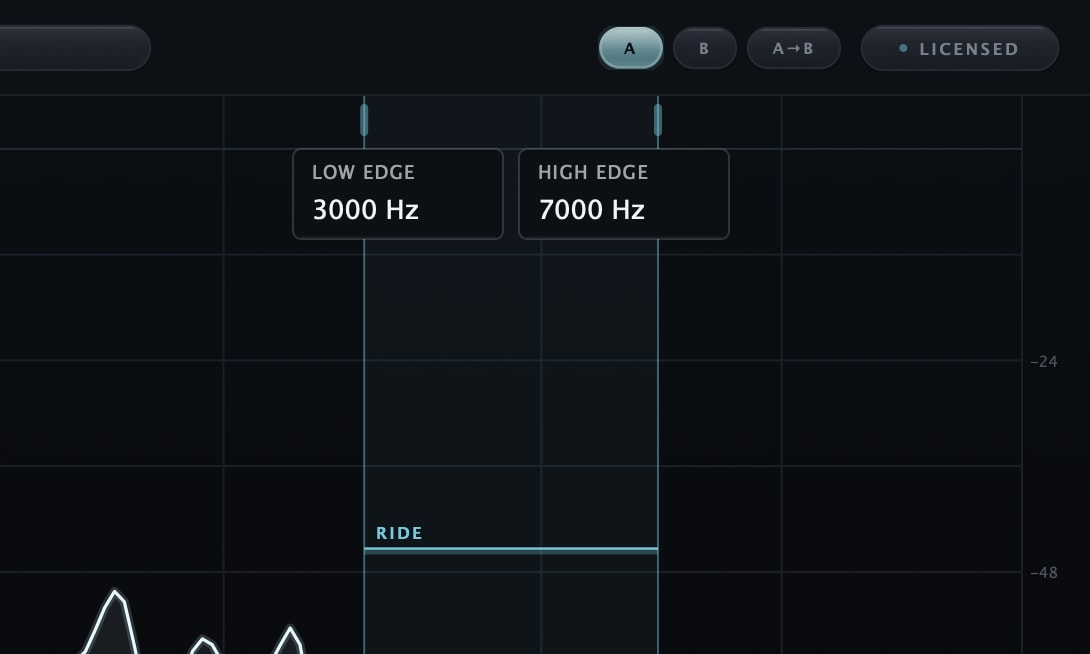
Type the band edges
Click the band to expose LOW EDGE and HIGH EDGE. Type exact frequencies, drag either edge, or move the whole band while keeping its width.
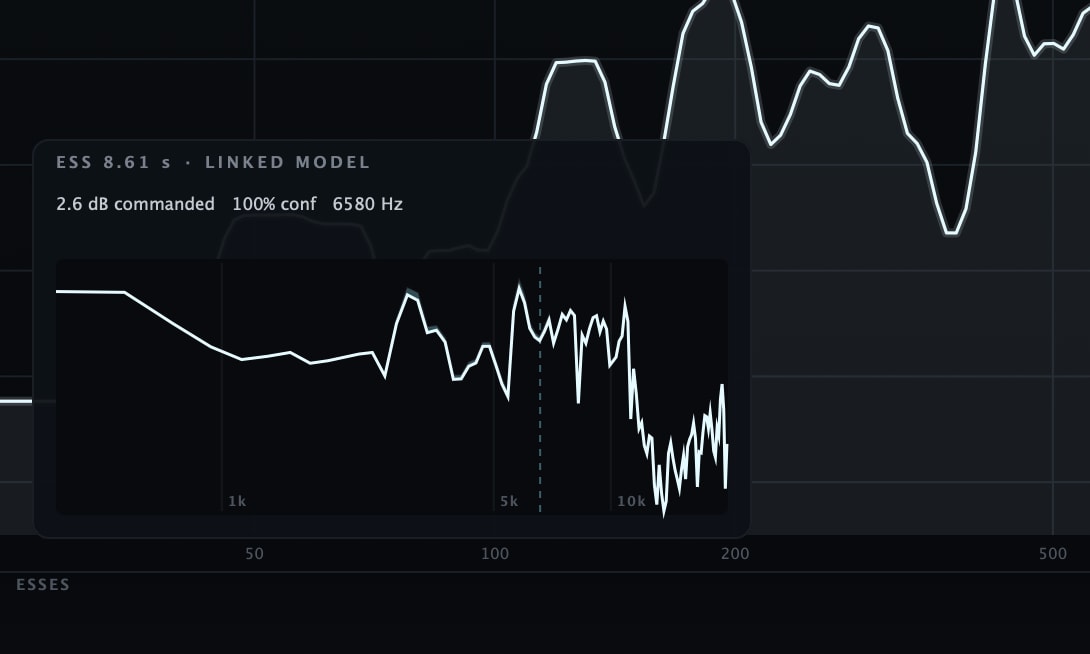
Inspect a detected ess
Click an event to see its time, commanded depth, confidence and center frequency. Available Precise spectra are shown as a LINKED MODEL; Live and unlinked spectra are not measured.
All features & controls
- Relative threshold that follows the program level, plus an Absolute threshold mode
- LEARN analyzes recent input to place the band, calibrate the relative threshold and suggest Amount
- AMOUNT 0–150% moves the target balance; RANGE 0–24 dB caps requested reduction
- Three styles: Smooth, Split and Surgical
- The RIDE line shows the detector’s operating threshold
- Input and output spectrum displays use latency-aligned audio taps
- Clickable ess strip with commanded depth, confidence and event timing
- Available event spectra are labeled LINKED MODEL; Live and unlinked channel spectra are not measured
- Precise mode reports 191 samples of plugin latency, about 4 ms at 48 kHz
- Live mode reports zero plugin latency; Surgical uses the Split path in Live
- Listen modes: Band, Voice and Removed; mouse hold is momentary, keyboard 1/2/3 latch
- Stereo, Mid Focus and Sides processing
- LINK biases per-channel depth in Precise Stereo operation with Split or Surgical
- SPEED adjusts overall response; separate Attack and Release trims live in the drawer
- A/B parameter snapshots persist with the DAW session
- 24 factory starting points covering vocals, speech, stacks, cymbals, strings, buses and live use, plus presets you save yourself
- Windows 10+ 64-bit: VST3 and AAX. macOS Intel and Apple Silicon: AU, VST3 and AAX
Precise or Live
Precise reports 191 samples, about 4 ms at 48 kHz. Live reports zero plugin latency and uses Split when Surgical is selected.
Smooth, Split, Surgical
Choose a gradual high-frequency contour, a more uniform band reduction or per-bin spectral shaping in Precise. Use Amount and Range to control how far the treatment goes.
Band, Voice, Removed
Listen to the detection band, the input outside it or the difference signal. Mouse hold gives a momentary audition; 1, 2 and 3 latch the modes.
Choose the controls for the job
| What you want to change | Controls to reach for |
|---|---|
| How softly the esses sit | AMOUNT moves the target balance; RANGE caps the requested reduction. |
| Where detection listens | LEARN places the band from recent input. Drag the edges or type exact frequencies, then audition Band. |
| How the threshold responds | Relative follows the performance; Absolute uses a fixed level. |
| The shape of the reduction | Smooth uses a gradual contour, Split treats the band more uniformly, and Surgical varies the spectral reduction in Precise. |
| Monitoring latency | Live reports zero plugin latency. Surgical runs as Split in this mode. |
| Which part of a stereo source is treated | Stereo processes both channels, Mid Focus treats the center component, and Sides treats the stereo difference. |
Put it to work.
Lead vocals
Learn a phrase with several esses, then set Amount and Range. The Relative threshold follows the vocal level; check both quieter lines and louder passages in the mix.
Backing vocals and stacks
Compare Smooth and Split on a vocal group. Use Mid Focus or Sides when the problem belongs to one part of the stereo image.
Dialogue and voice-over
Position the band around the troublesome consonants and keep Range restrained. Use Removed to check whether you are changing more of the words than you intended.
Hats, overheads and acoustic guitar
Start with Hi-Hat Tamer, Cymbal Wash or Acoustic Sparkle. Adjust the band and reduction for the recording rather than treating the preset as a finished setting.
THE DETAILS
Fits your setup.
- Threshold
- Relative, level-tracked · Absolute
- Styles
- Smooth · Split · Surgical; Surgical uses Split in Live
- Reduction
- Amount 0–150% · Range 0–24 dB
- Events
- Clickable ess strip · commanded depth · available linked spectrum model
- Stereo
- Stereo · Mid Focus · Sides
- Link
- Per-channel depth bias in Precise Stereo with Split or Surgical
- Listen
- Band · Voice · Removed
- Starting points
- 24, named for sources; save your own
- Latency
- Precise: 191 samples, about 4 ms at 48 kHz. Live: 0.
- Formats
- VST3 and AAX on macOS and Windows · AU on macOS
- Platforms
- Windows 10+ (64-bit) · macOS 10.15+ Intel / 11+ Apple Silicon
- Made in
- USA
- Windows
- Windows 10 or later, 64-bit. VST3, AAX, Standalone.
- macOS
- macOS 10.15 or later on Intel; macOS 11 or later on Apple Silicon. AU, VST3, AAX.
- Hosts
- A 64-bit host supporting your platform’s plugin format. Your DAW may require a newer operating system.
Use it in Pro Tools, Logic Pro, Ableton Live, Cubase, Studio One, FL Studio, REAPER, Bitwig Studio, and other compatible hosts.
Find the right format for your DAWQuestions about Chamfer.
What happens when the singer gets louder?
In Relative mode, the threshold follows the program level and learned calibration rather than staying at one fixed dBFS value. Set Amount and Range for the vocal and check both quiet and loud passages. Absolute mode is available when you want a fixed threshold.
How do I avoid over-de-essing?
Keep the detection band focused on the troublesome sounds, lower Amount or Range when articulation suffers, and compare the Removed signal with the whole phrase. The reduction safeguards do not guarantee the right result for every source or setting.
What latency does it add?
Precise reports 191 samples, approximately 3.98 ms at 48 kHz. Live reports zero plugin latency, with Surgical running as Split. Your interface, buffer and other plugins still contribute to monitoring delay.
Does it work on sources other than vocals?
The factory library includes starting points for hi-hats, cymbals, acoustic guitar and buses as well as vocals and speech. Adjust the band, style, Amount and Range to the recording.
What does the event card show?
The card shows detected-event timing, commanded depth, confidence and center frequency. When available, its spectrum is a linked reduction model, not a separately recorded per-channel before/after measurement. Live, unlinked and expired captures can show a spectrum-unavailable message.
Which formats and platforms?
VST3 and AAX on Windows 10 or later, 64-bit. AU, VST3 and AAX on macOS, with Intel and Apple Silicon support. Choose the format your DAW loads and check Downloads for current installers.
Is there a free trial?
Yes. Every released Vitric plugin has a free 3 day trial with every feature available during the trial window. Trials need a live internet connection; the plugin checks in every few minutes. Purchased perpetual licenses work offline. Get the installer from the downloads page and request your machine-bound trial license on the trial page. At the signed expiry the plugin’s output goes silent until you install a purchased license or a valid subscription grant. The plugin can still load, so projects and saved settings are not deleted.
Own Chamfer De-Esser? Leave a verified review from your account.
FREE STUDIO TOOLS
Work out the next move.
Measure a mix or find a starting point. These tools run in your browser, with no account required.
GUIDES & JOURNAL
The technique behind Chamfer.
Practical explanations, build stories and examples to try in your own session.
PART OF THE COLLECTION
Chamfer, in a bundle.
Chamfer is included in these bundles. Compare their contents and current offers.
Find its next partner.
Explore all plugins
Hear it in your own session.
Chamfer. $29, or try it free for 3 days.
By buying, you agree to the EULA and Terms of Service.
Try free for 3 daysOne-time purchase · 3 computers at a time · 14-day money-back guarantee
Instant download: your license key arrives by email right after payment.
Or get all 12 with Vitric Access, $20 a month