How to install VST3, AU and AAX plugins on Windows and Mac: FL Studio, Ableton, Logic, Pro Tools and more
To install a plugin, run its installer, which puts each format in your computer's standard plugin folder, then open your DAW and let it scan. Here are the folders on Windows and Mac, the format each DAW loads, and how to make FL Studio, Ableton Live, Logic Pro, GarageBand, Pro Tools, Cubase, Studio One, REAPER and Bitwig find a new plugin.
To install a plugin, close your DAW and run the plugin's installer, which puts each plugin format in your computer's standard plugin folder, then open the DAW and let it scan for new plugins. Install the format your DAW loads: VST3 for most DAWs, AU (Audio Units) for Logic Pro and GarageBand on a Mac, and AAX for Pro Tools. If the plugin does not appear, the usual causes are the wrong format, a folder the DAW does not scan, or a scan that has not run yet.
Step 1: pick the format your DAW loads
| DAW | Formats it loads |
|---|---|
| FL Studio | VST2, VST3, CLAP; AU on Mac |
| Ableton Live | VST2, VST3; AU on Mac |
| Logic Pro | AU only |
| GarageBand | AU only |
| Pro Tools | AAX |
| Cubase | VST3 (VST2 unofficially) |
| Studio One | VST2, VST3, CLAP; AU on Mac |
| REAPER | VST2, VST3, CLAP, LV2; AU on Mac |
| Bitwig Studio | VST2, VST3, CLAP |
Where you have a choice, VST3 is the current version of Steinberg's standard. The guide to VST, VST3, AU and AAX explains the differences.
Step 2: run the installer
Most plugins come as an installer (an .exe on Windows, a .pkg on a Mac) that copies each format into the standard shared folder, where compatible DAWs look:
- VST3, Windows:
C:\Program Files\Common Files\VST3 - VST3, Mac:
/Library/Audio/Plug-Ins/VST3 - AU, Mac:
/Library/Audio/Plug-Ins/Components - AAX, Windows:
C:\Program Files\Common Files\Avid\Audio\Plug-Ins - AAX, Mac:
/Library/Application Support/Avid/Audio/Plug-Ins - CLAP:
C:\Program Files\Common Files\CLAPon Windows,/Library/Audio/Plug-Ins/CLAPon a Mac
Some Mac installers use the per-user folders ~/Library/Audio/Plug-Ins/VST3 and ~/Library/Audio/Plug-Ins/Components instead. To open a folder on a Mac, paste its path into Finder's Go, Go to Folder; the leading slash means the computer's Library, not the one in your home folder. On Windows, use the system VST3 folder above. If a plugin comes as a bare file instead of an installer, copy it into the folder for its format; moving a file into another format's folder does not convert it. Older VST2 plugins on Windows are .dll files with no fixed folder, so you tell the DAW where they are.
Step 3: make your DAW find the plugin
FL Studio
Choose Options, File settings, Manage plugins, turn on Verify plugins and click Find plugins. VST3 and AU plugins must sit in their default system folders; custom search paths are only for VST2. The FL Studio install guide goes step by step.
Ableton Live
Open Settings (Ctrl+comma or Cmd+comma), choose Plug-Ins, make sure the VST3 system folders source is on (and Use Audio Units v2, or v3 for AUv3 plugins, on a Mac), then click Rescan. See the Ableton Live install guide.
Logic Pro
Reopen Logic and let its Audio Unit scan finish; it validates each new plugin. Logic Pro, Settings, Plug-in Manager lists them, and the Compatibility column shows any that failed validation: select one and click Reset & Rescan Selection. See the Logic Pro install guide.
GarageBand
GarageBand loads Audio Units from /Library/Audio/Plug-Ins/Components, and Audio Unit Extensions (AUv3) from apps in your Applications folder. Make sure Enable Audio Units is on under GarageBand, Settings, Audio/MIDI, then reopen GarageBand. Effects appear in the Audio Units submenu of an empty plug-in slot, and instruments under AU Instruments in a software instrument track's Instrument slot.
Pro Tools
Pro Tools loads AAX plugins from its Plug-Ins folder (the AAX paths above), including any sub-folders. When it starts, it searches that folder, checks each plugin's digital signature and loads the valid ones, so quit and reopen Pro Tools after installing. If a plugin is still missing, check whether it was moved to the Plug-Ins (Unused) folder next to Plug-Ins; move it back and relaunch.
Cubase
Open Studio, VST Plug-in Manager. The Scan button scans for new and blocked plugins (hold Shift to rescan them all). A plugin that fails goes on the Blocklist tab: select it and click Reactivate to scan it again. VST2 plugins appear only after you turn on Enable VST 2 Plug-ins in the same window and set their paths there; Steinberg no longer officially supports VST2, and it does not load when Cubase runs natively on Apple Silicon. Cubase loads 64-bit plugins only.
Studio One (now Fender Studio Pro)
It scans its plugin locations each time it starts. AU and VST3 use their system folders; for VST2 folders, go to Options (Preferences on a Mac), Locations, VST Plug-ins and click Add. A plugin that keeps failing at startup, for example because it is not authorized or its iLok key is missing, goes on a blocklist; click Reset Blocklist in the same place and it is scanned again at the next start.
REAPER
Choose Options, Preferences, then VST under Plug-ins. Click Edit path list: Add system VST paths fills in the standard folders, and Add path adds others. Then click Re-scan, which makes new plugins available and retries any that failed earlier. REAPER also scans for new plugins each time it starts; CLAP has its own path list and rescan on the LV2/CLAP page.
Bitwig Studio
Click the Bitwig logo to open the Dashboard, then choose Settings, Locations. Plug-in Locations lists the folders Bitwig scans, so check that your plugin's folder is there. It also sets which format to show when a plugin is installed in more than one, such as preferring CLAP over VST or VST3 over VST2.
Plugin not showing up? Check these
- The format. Logic and GarageBand only see AU, and Pro Tools only sees AAX, so a VST3 will never appear there.
- The folder. VST3 and AU plugins belong in the system folders above; a plugin left in your Downloads folder is not installed.
- The scan. Restart the DAW or run its rescan after installing.
- A failed scan. Check the DAW's blocklist or failed list: FL Studio's Rescan plugins with errors, Ableton's Rescan with Alt or Option held for a clean scan, Logic's Compatibility column, Cubase's Blocklist tab, Studio One's Reset Blocklist or REAPER's Re-scan. Update the plugin if it keeps failing.
- 32-bit or old builds. Cubase, Pro Tools, Logic and Ableton Live load 64-bit plugins only. On an Apple Silicon Mac, run the DAW natively first; for an older Intel-only plugin, check its maker's guidance rather than switching the whole DAW to Rosetta.
Installing Vitric plugins
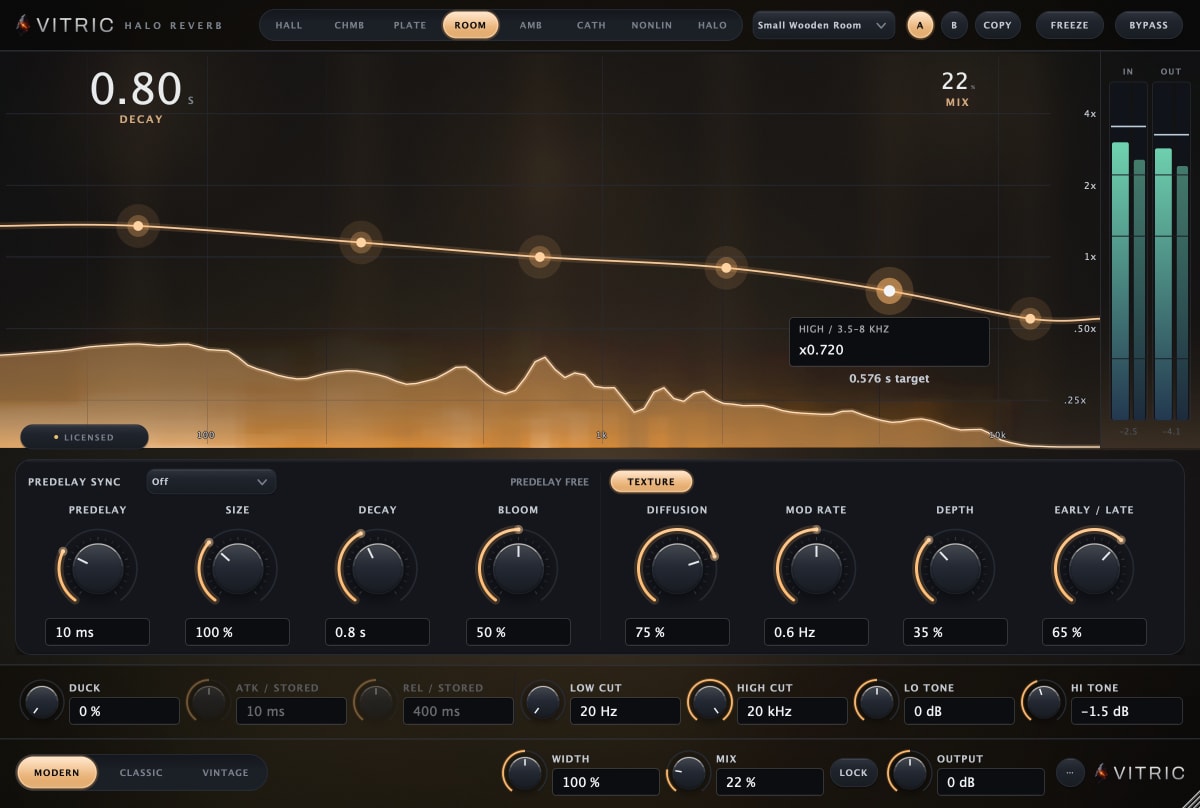
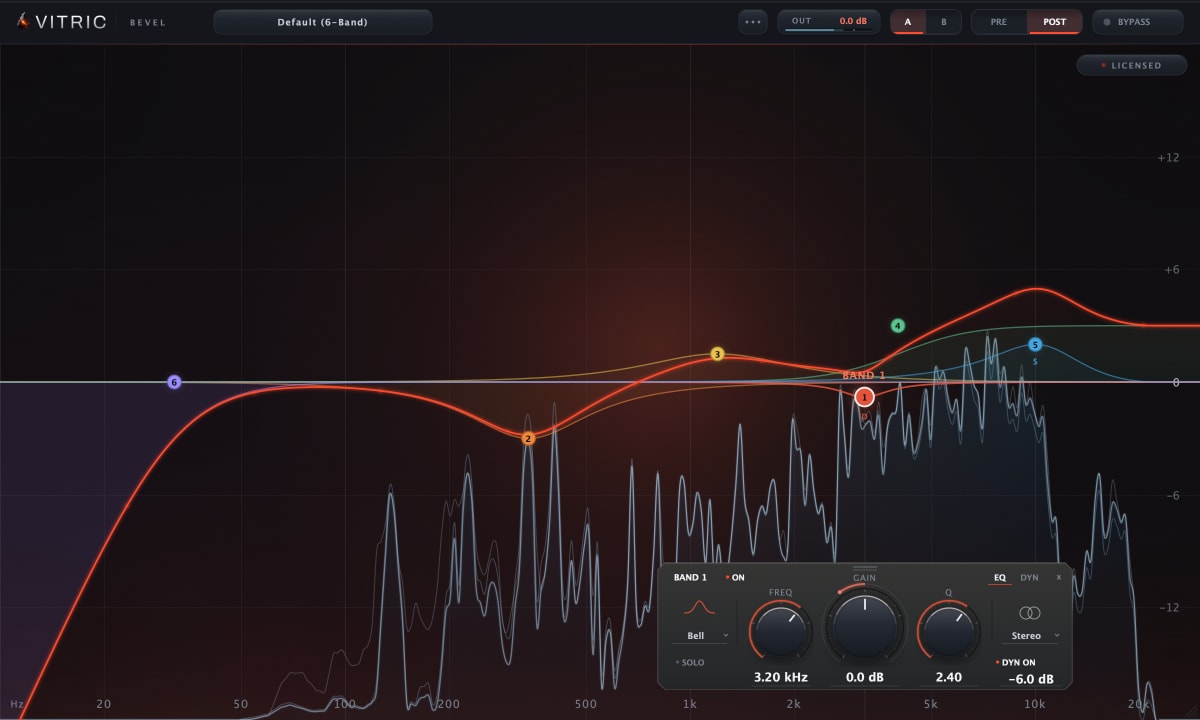
Vitric installers put each plugin in the standard folders above: VST3 and AAX on Windows and Mac, plus AU on a Mac. Every released Vitric plugin, such as Halo Reverb or Bevel EQ, has a free 3-day trial with every feature available.
Questions
Where do VST plugins go on Windows?
VST3 plugins go in C:\Program Files\Common Files\VST3. Older VST2 plugins (.dll files) can go in any folder, as long as you add that folder in your DAW.
Where do plugins go on a Mac?
VST3 in /Library/Audio/Plug-Ins/VST3, AU in /Library/Audio/Plug-Ins/Components, and AAX in /Library/Application Support/Avid/Audio/Plug-Ins.
How do I add plugins to Pro Tools?
Install the AAX version, which goes in the Avid Plug-Ins folder, then quit and reopen Pro Tools: it scans for AAX plugins when it starts.
Do I need to restart my DAW after installing a plugin?
Close it before you run the installer, then reopen it. Pro Tools, Studio One, Logic Pro and GarageBand pick up new plugins when they start; Cubase, REAPER, FL Studio and Ableton Live can also rescan while running.