How to use FL Studio: a beginner's guide to the Channel Rack, Piano roll, Playlist and Mixer
FL Studio is built around four windows: the Channel Rack holds your instruments and a step sequencer, the Piano roll holds notes, the Playlist arranges patterns into a song, and the Mixer is where all the audio goes. Here is what each one does, the shortcuts, and the order to use them in.
FL Studio's classic workflow is built on patterns. You build short patterns in the Channel Rack (drums on its step sequencer) and the Piano roll (notes), arrange them into a song in the Playlist, and shape the sound in the Mixer, which every bit of audio passes through on its way out. Learn those four windows and their shortcuts and you can make a whole track.
FL Studio's main windows and shortcuts
| Window | What it does | Key |
|---|---|---|
| Channel Rack | Holds your instruments; its step sequencer programs drums and simple melodies | F6 |
| Piano roll | Notes for one instrument | F7 |
| Playlist | Arranges patterns and audio into a song | F5 |
| Mixer | Levels, effects and routing | F9 |
| Sample Browser | Your samples and sounds | Alt/Opt+F8 |
F8 opens the plugin picker and F12 closes all windows. Space starts and stops playback, R switches recording on and off, and L switches between pattern and song mode. The single-key shortcuts only work when the typing keyboard is not set to play notes: Ctrl+T (Cmd+T on a Mac) toggles it, and while it is on, letter keys play notes instead. On a Mac laptop you may need to hold fn to use the F keys.
If you are completely new to music production, Image-Line suggests starting with Loop Starter, which pulls loops and one-shot samples from the FL Cloud sounds library for a genre you pick, and current versions have guided Loop starter and Step sequencer tutorials in the Help menu.
Step 1: set the tempo and program drums in the Channel Rack
Set the song tempo in the larger digits on the toolbar. The Channel Rack holds the instruments that make sound, one channel button per instrument. Its step sequencer is a pattern grid that Image-Line describes as ideal for drum loops and simple melodies: left-click a step to place a hit, right-click to remove it. To add an instrument, open the Channel Rack's options menu and choose Add one: it lists your favorite instruments, and More plugins in the same list opens every instrument you have. The add button at the bottom of the Channel Rack opens the same list, and you can drag a sample from the Browser onto the Channel Rack. For patterns to copy step by step, see the drum patterns guide.
Step 2: melodies in the Piano roll
Right-click an instrument's channel button and choose Piano roll to write its notes, chords and lengths. With the Draw tool (P), left-click to add a note and right-click to delete it; the Paint tool (B) adds several notes as you drag. Snap to scale keeps the notes you add, move or record in a key or scale. A pattern holds everything you write for every channel at once (step sequencer, Piano roll and automation data), and the pattern selector on the main toolbar switches between patterns. For chords that fit your key, see chord progressions in every key.
Step 3: arrange in the Playlist
Patterns are made to be arranged in the Playlist as Pattern Clips to build a song. Drag a pattern in from the Playlist's Picker panel (Alt/Opt+P shows it), or click it there and then click in the Playlist to place it. Copy it along the timeline and stack different patterns on different rows. Press L to switch to song mode so playback follows the Playlist instead of looping the current pattern. Newer versions also let you load an instrument straight onto a Playlist track with its + icon; this guide follows the pattern workflow.
Step 4: route and mix in the Mixer
All audio in FL Studio passes through the Mixer. Each channel in the Channel Rack can be routed to one of the Mixer's insert tracks: click its Mixer track routing control (it shows --- until you set it) and drag up or down to choose the track (press Alt/Opt+M if the control is hidden), or select channels and press Ctrl+L (Cmd+L on a Mac) to route each one to a free Mixer track. If nothing is set, the channel goes straight to the Master. Give each drum and instrument its own track so you can treat them separately.
Each Mixer track has 10 effect slots for plugins such as EQ, compression and reverb: left-click the arrow at the left end of a slot and choose Select to load one. An insert track can also be sent to as many other tracks as you need: select the source track, then click the send switch on the destination. That keeps the source routed to the Master too; right-click the switch instead to send it only to that track.
Step 5: save and export your song
Save the project with Ctrl+S (Cmd+S) as an .flp file. Export from the File menu as WAV, MP3, OGG, FLAC or M4A (Ctrl+R or Cmd+R opens the WAV export), and set Mode to Song to render the whole song rather than the current pattern. By default FL Studio renders the Master track, so any Mixer track that is not routed to the Master, directly or through another track, is left out: check your routing first. To export stems, turn on Split mixer tracks: each Mixer track is saved as its own WAV file (this option does not export FLAC, MP3 or OGG), and effects on the Master are only on the Master stem.
Adding plugins to FL Studio
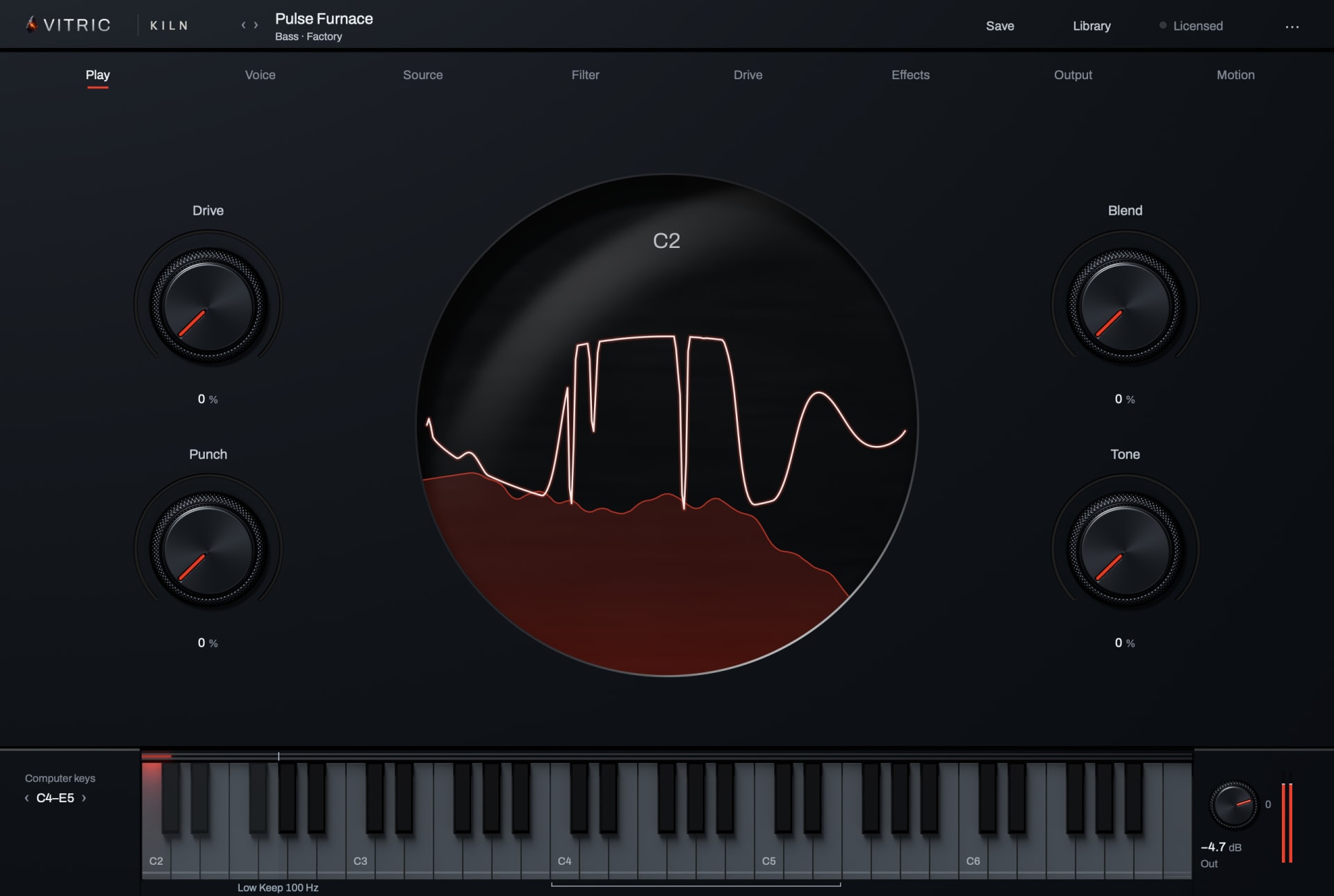
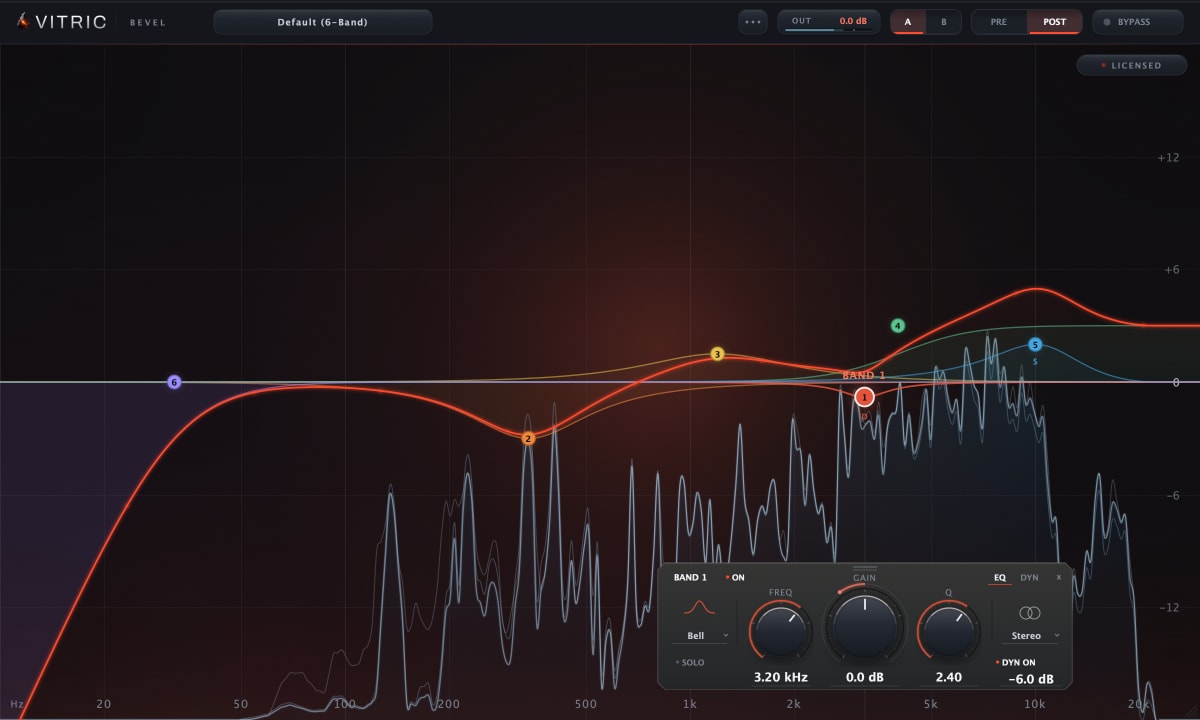
On Windows FL Studio loads VST2, VST3 and CLAP plugins; on a Mac it also loads Audio Units. Install the VST3 version where you have the choice, then rescan; the FL Studio plugin install guide walks through the folders and the plugin manager. Vitric plugins, such as Kiln Synthesizer as an instrument in the Channel Rack or Bevel EQ in a Mixer slot, install as VST3 on Windows and Mac (plus AU on a Mac).
Questions
What is the Channel Rack in FL Studio?
The window that holds your instruments, with a step sequencer for drums and simple melodies. F6 opens it.
How do I open the Piano roll in FL Studio?
Right-click an instrument's channel button in the Channel Rack and choose Piano roll, or press F7.
What is the difference between pattern and song mode?
Pattern mode loops the current pattern; song mode plays the arrangement in the Playlist. Press L to switch.
How do I export stems in FL Studio?
Give each instrument its own Mixer track, then export from the File menu as WAV with Split mixer tracks on: each Mixer track is saved as its own file. Effects on the Master are only on the Master stem.