How to add plugins to GarageBand: installing and using Audio Units (AU) plugins
GarageBand on a Mac loads Audio Units (AU) plugins, not VST or AAX. Install the plugin's AU version, turn on Enable Audio Units in GarageBand's settings, then pick the plugin from an effect slot or the Instrument slot. Here is each step and what to do when a plugin does not show up.
GarageBand on a Mac uses Audio Units (AU) plugins. To add one, install the plugin's AU version, turn on Enable Audio Units in GarageBand > Settings > Audio/MIDI, then reopen GarageBand. Effects are in the Audio Units submenu of an empty plug-in slot; instruments are under AU Instruments in a software instrument track's Instrument slot, listed under the maker's name.
Does GarageBand support VST plugins?
No. GarageBand, like Logic Pro, uses Audio Units, Apple's plugin format built into macOS. If a plugin maker offers VST3 and AU, install the AU version for GarageBand; the VST3 is for other DAWs. A VST file cannot be converted: moving it into the Components folder does not turn it into an Audio Unit. The guide to VST, AU and AAX explains the formats.
Step 1: install the AU version
Run the plugin's Mac installer and keep AU selected if it offers format choices. There are two kinds of Audio Units:
| Kind | Where it installs |
|---|---|
| Audio Units plug-in (AUv2) | A .component file in the Components folder |
| Audio Unit Extension (AUv3) | Inside an app in Applications |
Some installers use the Components folder in your own Library instead: ~/Library/Audio/Plug-Ins/Components. To look in either folder, choose Go > Go to Folder in Finder and paste the path. On an Apple Silicon Mac, check that the maker offers an Apple Silicon or Universal version, and that the plugin supports your versions of GarageBand and macOS.
Step 2: turn on Enable Audio Units
Open GarageBand, choose GarageBand > Settings (Preferences in older versions, or press Command-Comma), click Audio/MIDI and select Enable Audio Units. Then quit and reopen GarageBand. It has no plugin manager or rescan button, so reopening it is how it picks up a newly installed plugin.
Step 3: add an effect plugin
- Select the track and open Smart Controls: click the Smart Controls button in the control bar, choose View > Show Smart Controls, or press B. For the master track, click Master in the Smart Controls menu bar, then Output.
- If the Plug-ins area is closed, click its disclosure arrow.
- Click an empty plug-in slot, choose Audio Units, then the maker's name, then the plugin. If every slot is full, click in the space between plug-ins, above the first or below the last.
- The plugin's window opens. To open it again later, click the middle of its slot.
Hold the pointer over a slot and click its Power button to switch the plugin off and on. Drag a plugin up or down to change the order; plugins process in sequence, so the order changes the sound. To swap or remove one, click the right side of the slot and choose another plugin, or No Plug-in.
Step 4: add an instrument plugin
Instrument plugins work on software instrument tracks only; to make one, choose Track > New Track, click Software Instrument, then Create. Select the track, click the right side of the Instrument slot in the Plug-ins area, choose AU Instruments (some instruments are under AU Generators), then the maker's name and the plugin. It replaces the track's current instrument; to go back, choose the original patch again in the Library. Click the middle of the Instrument slot to open the plugin's window.
Plugin not showing up in GarageBand?
- Enable Audio Units is off: turn it on in GarageBand > Settings > Audio/MIDI, then reopen GarageBand.
- Wrong format: only the AU version appears. VST, VST3 and AAX files do not.
- Wrong place: the component should be in a Components folder, not left in Downloads; an AUv3 comes inside its app, so install the app.
- Wrong slot: instruments only appear in the Instrument slot of a software instrument track, not in effect slots.
- Old builds: a 32-bit plugin, or an Intel-only one on an Apple Silicon Mac, needs an updated build from its maker.
If you also have Logic Pro, its Plug-in Manager can show whether an Audio Unit failed validation; the Logic Pro AU guide covers it.
GarageBand on iPhone and iPad
GarageBand on iPhone and iPad uses Audio Unit Extensions installed on the device. To add one as an effect, tap Track Controls, then Plug-ins & EQ, then Edit; tap an empty slot, then Audio Unit Extensions, and pick the effect. Vitric plugins are for Mac and Windows, so they are not available there.
Vitric plugins in GarageBand
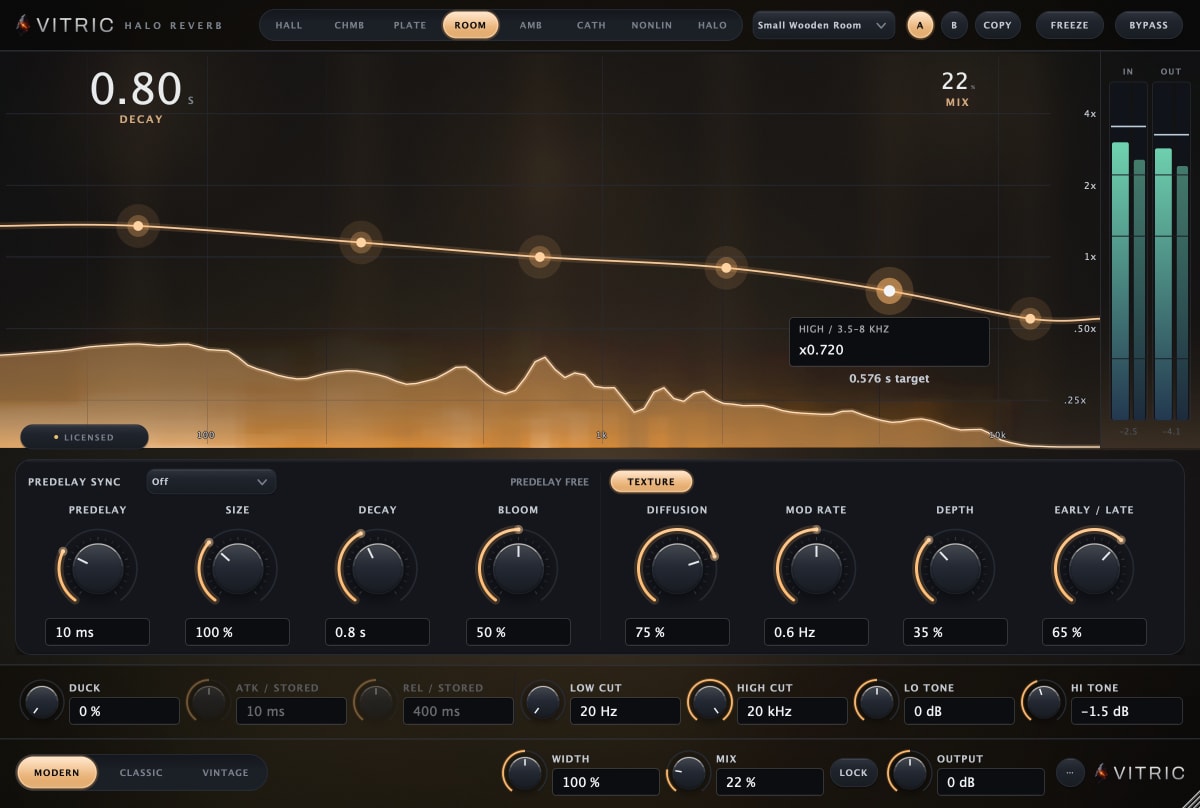
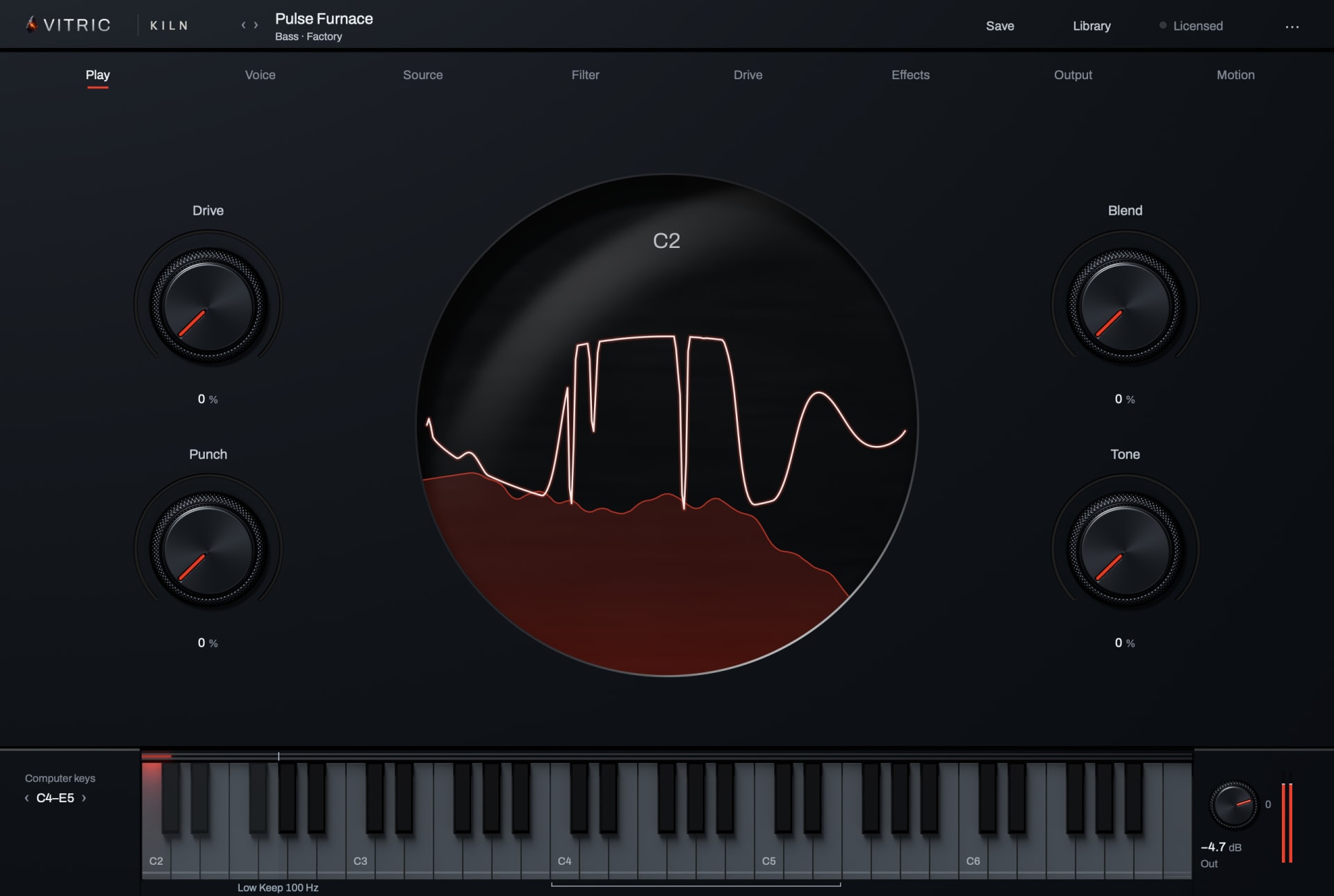
Every Vitric Mac installer includes the AU version, the format GarageBand uses; use the current installer. Vitric plugins need macOS 10.15 or later on Intel, or macOS 11 or later on Apple Silicon, and your version of GarageBand may need a newer macOS. They are listed under Vitric Audio. For example, Halo Reverb is an effect: choose Audio Units, Vitric Audio in an empty effect slot. Kiln Synthesizer is an instrument: choose AU Instruments, Vitric Audio in a software instrument track's Instrument slot. Plinth Subharmonic Synthesizer is an effect, despite its name.
Questions
Can you use plugins in GarageBand?
Yes. On a Mac, GarageBand loads Audio Units (AU) plugins, both effects and instruments, once Enable Audio Units is on. On iPhone and iPad it uses Audio Unit Extensions installed on the device.
Does GarageBand support VST?
No. GarageBand loads AU plugins only; install the plugin's AU version.
Where are GarageBand plugins installed?
AU plugins go in /Library/Audio/Plug-Ins/Components (some installers use ~/Library/Audio/Plug-Ins/Components); Audio Unit Extensions come inside apps in your Applications folder.
Why are my plugins not showing up in GarageBand?
Check that Enable Audio Units is on and that you installed the AU version, then quit and reopen GarageBand.