

Colorfield Mix Stage
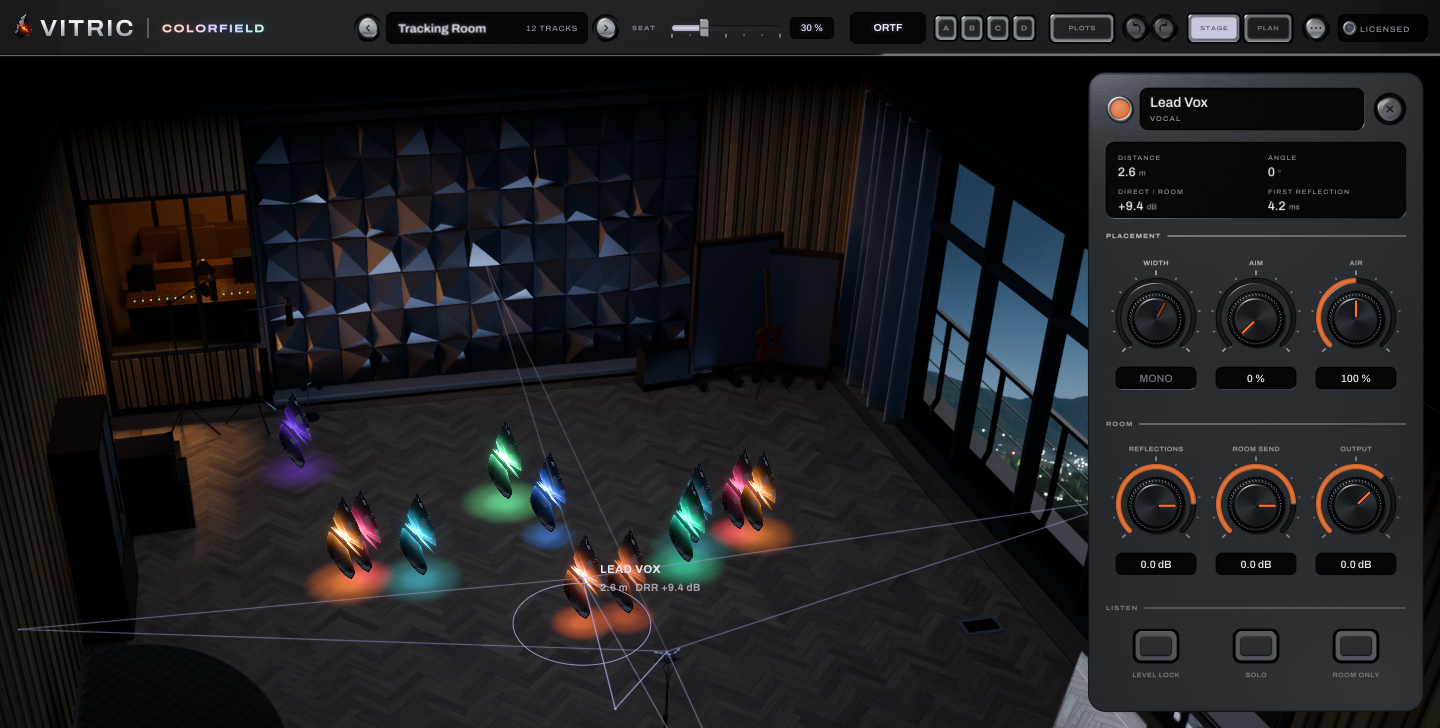
Colorfield Mix Stage puts your whole mix on one stage, in one room. You put one Colorfield on every track, and every Colorfield window shows all of those tracks standing in the same lit room. Drag a track forward or back, left or right, and it sounds as if it stood there. Further back means quieter and more distant, with more of the room's reflections and tail, softer highs from the air, and less close-mic warmth.
Every Colorfield runs the same room tail, so the whole mix sounds like one room. No audio passes between them: each one renders its own track.
Colorfield also comes as a standalone app, the Stage app. It opens a folder of stems, places them on the same stage and exports the mix as a WAV file.
This manual covers Colorfield Mix Stage 1.0.5 on macOS and Windows: the plugin in AU, VST3 and AAX, and the Stage app.
Quick start
- Name your tracks with clear words (Lead Vocal, Kick, 808, Bass, Gtr, Keys, Pad). Colorfield reads the names to guess each track's role, and plots place tracks by role (see Roles).
- Insert Colorfield on every track you want in the mix, as an insert effect on mono or stereo audio tracks. It is not an instrument and takes no MIDI. Its output is always stereo: on a mono track in Logic Pro, choose the Mono → Stereo version. Keep every Colorfield in your DAW's main plugin process, not bridged or sandboxed, or the stage shows only some tracks (see Hosts and limits).
- Open any Colorfield window. Every track with Colorfield on it stands on the stage. A Colorfield you just inserted places itself after a moment, at the spot for its role or at the nearest clear spot. If the license window at the top right reads LOCKED, Colorfield stays silent until you activate it or start a trial (see Installation and activation).
- Choose a room in the header.
- Play the song, then choose a plot under PLOTS to place every track by its role in one step.
- Drag tracks where you want them: left and right for the stereo place, forward and back for distance. A track moved back gets quieter, up to 10 LU. To keep its level, start dragging, then hold Shift.
- Click the COLLISIONS chip at the lower left to see which tracks mask each other, and click APPLY to make a suggested move.
How the stage works
- One stage: every Colorfield in your session joins one stage. Any Colorfield window shows all of them and edits all of them.
- Every edit belongs to its track: an edit always lands on the Colorfield that owns the track, as that track's own setting. It is saved with that track and your DAW can automate it (all but the array), even when you make it from another track's window. SOLO and ROOM ONLY are listening aids and are not saved.
- One room: the room settings (Room, Room Size, Brightness, Room Amount, Listener Seat and Listener Array) are copied into every Colorfield on the stage, so each one holds its own copy.
- No delay: the direct sound is never delayed. Moving a track changes its level, tone, stereo place and room, never its timing. Colorfield reports 0 samples of latency to your DAW.
The window
The header runs across the top. The stage fills the window below it, with the selected track's deck floating at the right and the COLLISIONS chip at the lower left. Each window opens at 1440 x 900 with its own track selected and the deck open. Drag the lower right corner to resize it from 1152 x 720 to 2560 x 1600; it keeps its 16:10 shape.
The header

- Room. The room every track shares.
- SEAT. Where the mix is heard from.
- Array. The stereo pair that hears the room.
- Scenes A to D. Four stored stages.
- PLOTS. Place every track by its role.
- Undo and redo. Step through your changes.
- STAGE and PLAN. The two views.
- MORE (···). Reflections for every track.
- License window. LICENSED, TRIAL or LOCKED.
Each marker sits just left of its control.
| Control | What it does | Range | Default |
|---|---|---|---|
| Room | The arrows step to the previous or next room; click the room window for the list. Every track on the stage moves into the room you choose, and the change crossfades. The window also shows how many tracks are on the stage, or SETTINGS DIFFER · SYNC when they disagree (see One room). | 6 rooms | Tracking Room |
| SEAT | Where the mix is heard from, from the front row to the back of the room, for every track at once. Drag the fader or click where you want it; double-click for 30 %. | 0 to 100 % | 30 % |
| Array | The stereo pair that hears the room. Click the window to choose ORTF, Spaced pair or XY; it reads ORTF, SPACED or XY. | 3 arrays | ORTF |
| A · B · C · D | Shift-click a key to store the stage in it. Click it to recall the scene, gliding there over 1 second. | ||
| PLOTS | Opens the eight factory plots. | ||
| Undo · Redo | Step through your stage edits. Hold the pointer over UNDO to see what it will undo. | 100 steps | |
| STAGE · PLAN | STAGE shows the room in three-quarter view; PLAN shows it from above, for exact placement. P switches. | STAGE | |
| MORE (···) | Opens a menu with Show every track's reflections. | Off | |
| License window | Reads LICENSED, TRIAL and the days left, or LOCKED. Click it to open the license card. |
The stage
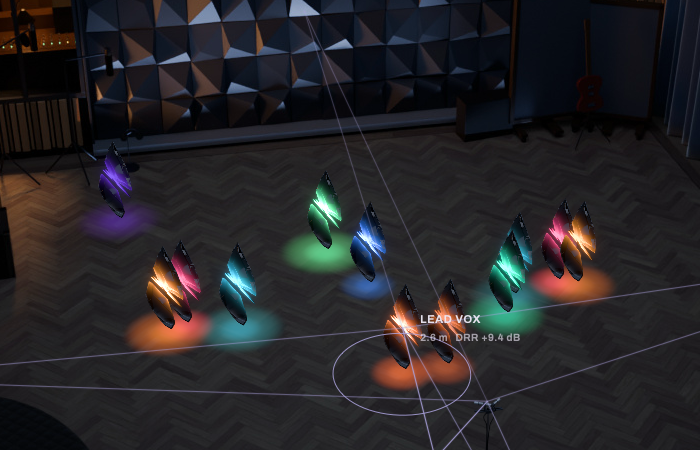
- The selected track. Lit in its color.
- Its label. Name, distance and DRR.
- Ring and pool. The light on the floor.
- Every other track. Lit by its own level.
- The listener. The array at the seat.
Each track stands in the room as a glass shard, lit by its live level. It takes its host track color when the host sends one with a clear hue, or else its role's color (a track with no recognized role gets a color of its own). Its pool of light on the floor widens with WIDTH.
The selected track carries a ring around its pool and a label with its name, its distance and its DRR (direct-to-room ratio, in dB: higher means drier and closer), the same value as DIRECT / ROOM in the deck. The selected track, or the one under the pointer, shows its reflection paths: lines from the track to the points where its sound strikes a wall, and on to the listener. Choose MORE > Show every track's reflections to draw them for every track.
The listener is the array you chose in the header, standing at the SEAT position.
STAGE and PLAN
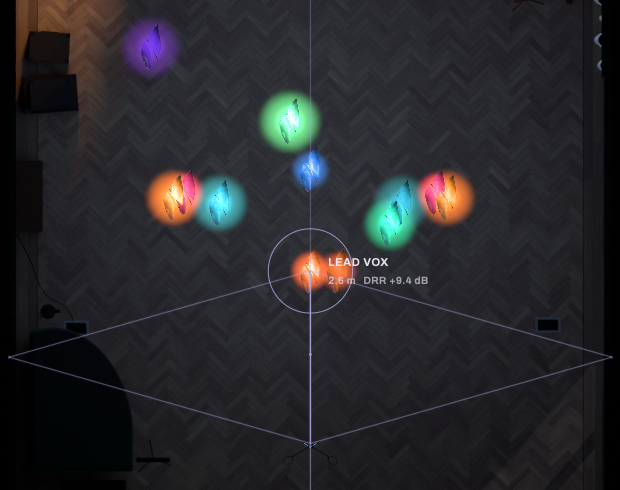
- The selected track. Its ring, from above.
- The listener. Where the reflection paths meet.
STAGE shows the room in three-quarter view. PLAN shows it from above, for exact placement. Everything works the same in both. Press P to switch.
The deck
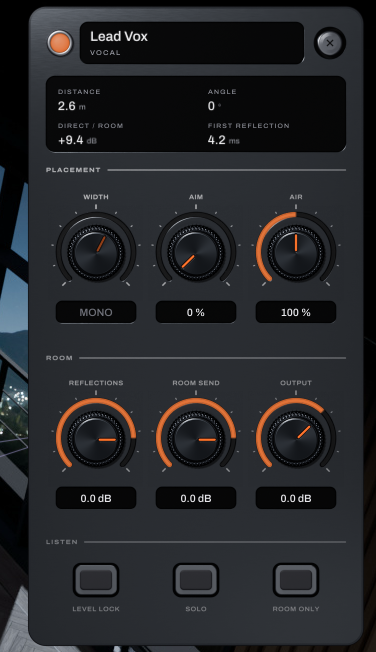
- Name window. The track's name and role.
- CLOSE. Hides the deck.
- Readouts. Where the track stands.
- PLACEMENT. WIDTH, AIM and AIR.
- Value windows. Click one to type.
- ROOM. REFLECTIONS, ROOM SEND, OUTPUT.
- LISTEN. LEVEL LOCK, SOLO, ROOM ONLY.
The markers sit at the deck's left edge; CLOSE's sits at its right.
The deck belongs to the selected track. Its name window shows the track name (Track, when the host sends none) and its role, beside a lamp lit in the track's color. CLOSE hides the deck. To open it again, click another track or press Tab; clicking the track that is already selected does not reopen it.
The readouts show what Colorfield made of the track's place: DISTANCE (meters), ANGLE (degrees; 0 is straight ahead, negative is to the left), DIRECT / ROOM (dB) and FIRST REFLECTION (ms).
PLACEMENT
| Control | What it does | Range | Default |
|---|---|---|---|
| WIDTH | How far apart a stereo track's two sides stand, from one point to its full spread. It reads MONO on a mono track. | 0 to 100 % | 100 % |
| AIM | Turns the track from facing you (0 %) to facing away (100 %): less top end straight to you, more room. | 0 to 100 % | 0 % |
| AIR | How much the air dulls the track's highs over its distance: 0 % none, 100 % the room's own, 200 % twice as much. | 0 to 200 % | 100 % |
ROOM
| Control | What it does | Range | Default |
|---|---|---|---|
| REFLECTIONS | Trims the track's early reflections. | OFF to +6 dB | 0 dB |
| ROOM SEND | Trims how much of the track reaches the shared room tail. | OFF to +6 dB | 0 dB |
| OUTPUT | The track's level after the stage. | -24 to +12 dB | 0 dB |
LISTEN
| Control | What it does | Range | Default |
|---|---|---|---|
| LEVEL LOCK | Keeps the track's loudness as it moves, so distance changes only the space around it. In our tests it held the loudness within 0.33 LU at every place we measured. | On or off | Off |
| SOLO | Hear this track alone, still in its room. Click it again to hear the band. | On or off | Off |
| ROOM ONLY | Hear only the room this track makes: its reflections and tail, no direct sound. | On or off | Off |
SOLO and ROOM ONLY are listening aids. They are not saved with your session and undo leaves them alone.
Working the knobs: drag to adjust, hold Shift for fine control, and use the mouse wheel to step (Shift for fine steps). Double-click a knob, or Cmd-click (Ctrl-click on Windows), to reset it, and click a value window to type a value. Each knob turn, wheel burst, reset, typed value or LEVEL LOCK press is one undo step.
Placing tracks
Moving tracks
- Click a track to select it and open its deck.
- Shift-click adds a track to the selection, or takes a selected one out.
- Drag to move the selection. Left and right set its place in the stereo picture; forward and back set its distance. A selection moves together, stops at the edge of the stage and keeps its shape.
- Cmd-drag (Ctrl-drag on Windows) moves at a quarter of the speed, for fine placement.
- The arrow keys move the selection 10 cm; with Shift, 1 cm; with Cmd (Ctrl on Windows), 50 cm. Up moves it away from you.
- Tab and Shift-Tab select the next and the previous track.
Depth is distance
Depth is spaced so that equal moves back sound like equal steps further away from the front row. As a track moves back, its direct sound gets quieter, the room around it grows, the air softens its highs, and its close-mic warmth fades. Without LEVEL LOCK, a track at the back of the stage can be up to 10 LU quieter than at the front.
Move without changing the level
Start dragging, then hold Shift to keep the track's loudness from that moment: Colorfield adjusts its OUTPUT as it moves, so only the space around it changes. The whole drag is still one undo step. (Shift as you click adds a track to the selection or takes it out.) To hold the level on every move, turn on LEVEL LOCK in the deck.
Movement and your DAW
A move writes the track's own Position X and Depth parameters. Colorfield sends drags and scene glides to your DAW as automation gestures, so you can record them with your DAW's automation. Automating a room setting on one track moves the whole stage; see One room.
Rooms and the listener
The rooms
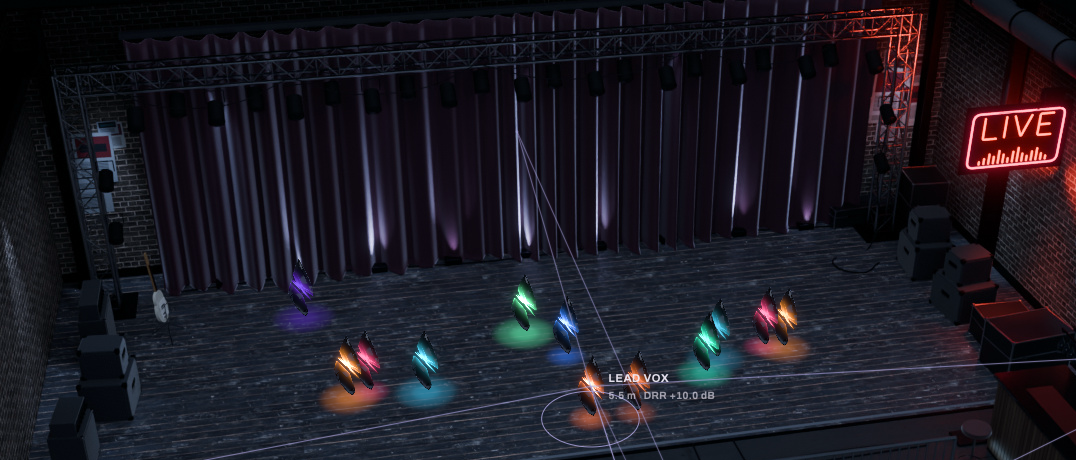
Choose a room with the arrows either side of the room window, or click the window for the list. Sizes are at Room Size 100 %.
| Room | Size | What it is | Use it for |
|---|---|---|---|
| Tracking Room | 9 x 11 m, 3.5 m ceiling | Wood floor and diffusers: the room records are made in. | A studio room for most mixes. |
| Drum Room | 8 x 10 m, 4.5 m ceiling | Brick and timber, live and punchy. | Drums and bands that want energy. |
| Club | 14 x 20 m, 4.2 m ceiling | A low ceiling, brick and a crowd: close and physical. | Dance and hip-hop mixes that should feel close. |
| Echo Chamber | 7.0 m deep, 3.6 m wide behind the band and 5.0 m wide at the listener's end, 3.2 m ceiling | A trapezoid chamber in hard plaster: long, smooth and bright. | Vocals, snares and effects that want a long, bright tail. |
| Loft | 12 x 16 m, 4.5 m ceiling | Exposed brick, a timber floor and tall windows. | A large, open room. |
| Concert Hall | Fan-shaped, up to 28 m wide and 38 m deep, 16 m ceiling | A fan-shaped hall in timber and plaster, full of people. | Orchestras and wide, spacious mixes. |
Three room settings have no control in the window. Reach them through automation or your DAW's parameter view:
- Room Size, 70 to 140 % (default 100 %): scales the room.
- Brightness, -100 to +100 % (default 0 %): tilts the room's surfaces brighter or darker.
- Room Amount, 0 to 100 % (default 20 %): from a dry studio to a live room. At 0 % the reflections and the tail are off. It is set relative to each room, so the same amount gives the same wetness at the front of the stage in any room.
To change one, set it on any one Colorfield, then click SETTINGS DIFFER · SYNC in any window to copy it to every track. The Stage app has no parameter view, so there these three settings stay at their defaults.
One room
The tail is identical in every Colorfield only while they share the same Room, Room Size and Brightness, and the stage keeps them matched. If the tracks disagree on any of the six room settings (Room, Room Size, Brightness, Room Amount, Listener Seat or Listener Array), the room window reads SETTINGS DIFFER · SYNC. Click it to give every track the settings that were changed most recently. It is one undo step.
A Colorfield you add to a stage takes the stage's room settings by itself, about a second after it opens: the most recently changed ones, as SYNC would. This works in every DAW, Pro Tools included. One loaded from a preset, a track template, a paste or a saved session keeps the settings it was saved with, so a session reopens exactly as you left it, and it joins the stage it's opened on. If its settings differ from the stage's, the room window reads SETTINGS DIFFER · SYNC, and SYNC gives every track the most recently changed settings.
Automate a room setting on one track, or change it in your DAW's own view of the plugin, and the whole stage follows once the change holds for a moment (about a quarter of a second). If two tracks automate the same setting differently, nothing follows: each track keeps its own automation, and the room window reads SETTINGS DIFFER · SYNC, so the room never jumps back and forth between them.
SEAT and the array
SEAT sets where the mix is heard from, from the front row (0 %) to the back of the room (100 %). The seat moves for every track at once.
The array (the window that reads ORTF, SPACED or XY) sets the stereo pair that hears the room:
- ORTF (default): two cardioids 17 cm apart at 110 degrees. Natural width with time and level cues.
- Spaced pair: two omnis 60 cm apart. The widest, most spacious picture.
- XY: two coincident cardioids at 90 degrees. Level cues only, the most solid in mono.
The array changes how the reflections and the tail are picked up. The direct sound is panned the same way with every array, so it stays mono-safe.
Plots and roles
Plots
PLOTS places every track by its role in one step. There are eight factory plots:
| Plot | What it does |
|---|---|
| Club EDM | Kick and bass in the center and close, the lead above them, hats and percussion spread, pads and effects wrapping the back. |
| Hip-hop: vocal up, 808 center | The vocal up front, the 808 and kick locked in the center close behind it, the sample and pads wide and back, ad-libs on the sides. |
| Jazz trio | Piano left, bass center, the kit right and a little back. |
| Orchestra | Strings across the front in a wide arc, winds and brass behind them, percussion at the back, a soloist on the front edge. |
| Pop: vocal forward | The lead vocal up front with its tail in the room, harmonies wide behind it, the band in a tight arc at mid-stage, pads on the back wall. |
| Rock band | The singer front and center, guitars hard left and right, bass beside the kit, the kit across the back. |
| Singer-songwriter | The voice closest, the acoustic guitar just beside it, piano and strings behind. |
| Wide pop wall | The vocal centered and close, doubles, guitars and keys pushed to the edges, pads and strings filling the back wall. |
- What a plot sets: each track's position, depth and width. In every plot, the vocal's spot also sets its REFLECTIONS to -6 dB and its ROOM SEND to +4 dB: up front, with its tail in the room.
- What it leaves: the room, the seat and the array.
- Who goes where: within a role, the loudest track takes the most important spot, so play the song before you choose a plot. A track with no recognized role takes the plot's spare places.
- A plot is one undo step.
Roles
Colorfield guesses each track's role from whole words in its track name (in the Stage app, the file name). For example, "Vox" or "Lead Vocal" is a vocal, "808" is an 808, "Kick" or "BD" is a kick, "Gtr" is a guitar and "Pad" is a pad. A track with no recognized word is Other.
When several words match, the longest one wins, so "Lead Vox" is a vocal and "Bass Drum" is a kick. Upper or lower case does not matter.
| Role | Words it recognizes |
|---|---|
| Vocal | vocal, vocals, vox, vx, voc, singer, lead vocal, lead vox, verse vox, hook vox |
| BGV | bgv, bgvs, bv, bvs, backing, backings, harmony, harmonies, harm, choir, adlib, adlibs, ad-lib, ad-libs |
| Kick | kick, kik, bd, bassdrum, bass drum |
| Snare | snare, snr, sn, rim, rimshot |
| Hats | hat, hats, hh, hihat, hi-hat, hihats, hi-hats |
| Overheads / Room | oh, ohs, overhead, overheads, room, rooms, amb, ambience, drum room |
| Toms | tom, toms, floor tom, rack tom |
| Bass | bass, bassline, sub, db, upright |
| 808 | 808, 808s |
| Keys | keys, key, piano, pno, rhodes, wurli, organ, ep, epiano, clav |
| Pad | pad, pads, atmos, texture, drone |
| Lead | lead, synth lead, pluck, arp, synth |
| Guitar | gtr, gtrs, guitar, guitars, acoustic, ac gtr, elec, strat, tele |
| Strings | strings, string, violin, violins, viola, cello, celli, vln, vc |
| Brass | brass, trumpet, tpt, horn, horns, sax, trombone, tbn |
| Perc | perc, percussion, shaker, tamb, tambourine, conga, congas, bongo, clap, claps, cowbell |
| FX | fx, sfx, riser, sweep, impact, whoosh, noise |
| Other | anything else |
Track names come from hosts that pass them to plugins. Many VST3 hosts send the track name and color. AU hosts can send only the name. A track with no name is Other. There is no control to set a role by hand: rename the track in your DAW to change its guess.
Scenes and undo
Scenes A to D
- Store: Shift-click a scene key. Storing replaces what the key held, and undo cannot bring it back.
- Recall: click it. Every track glides to its stored place over 1 second.
- What a scene holds: each track's position, depth, width, aim and LEVEL LOCK. The room, the seat, the array, AIR, REFLECTIONS, ROOM SEND and OUTPUT are not part of a scene.
- Each Colorfield keeps its own scenes, saved with your session. A track you add after storing a scene stays where it is when you recall it.
- A recall is one undo step. Undo puts back each track's position, depth, width and aim, but not LEVEL LOCK.
Undo and redo
Use the UNDO and REDO keys in the header, or Cmd + Z to undo and Cmd + Shift + Z or Cmd + Y to redo (Ctrl on Windows). Hold the pointer over UNDO to see what it will undo.
- One step each: a drag or an arrow-key move, a knob turn, a typed value, a LEVEL LOCK press, a plot, a scene recall, a room, seat or array change, a suggested move and a SYNC.
- Not on the list: storing a scene, and SOLO and ROOM ONLY, which are listening aids.
- Per window: each open Colorfield window keeps its own undo history, up to 100 steps. Closing the window clears it.
Collisions

- The pair. Each lamp in its track's color.
- Where. The frequency they mask most.
- How much. The longer the lit run, the more.
- The suggestion. A move that clears it.
- APPLY. Makes the move.
- CLOSE. Folds the list back.
Each marker sits above its item; APPLY's and CLOSE's sit at their left.
The COLLISIONS chip at the lower left counts the pairs of tracks that mask each other where they stand. Click it to open the list; CLOSE folds it back to the chip.
- What it measures: how much two tracks fill the same frequencies at similar levels (40 bands from 50 Hz to 12 kHz, read from each track's own input), times how close they stand. A step in depth separates two tracks more than the same step across.
- The list: up to four pairs, worst first. While it is open, the stage draws a thread between each pair.
- The suggestion: a move for the less important track of the pair, in meters, for example "Move Hats 0.69 m back: 47 % less masking." A move under 0.1 m reads "a step".
- Which track moves: the less important one, in this order, most important first: Vocal, Lead, Bass, 808, Kick, Snare, Keys, Guitar, BGV, Strings, Brass, Hats, Toms, Overheads / Room, Perc, Pad, FX, Other. Between two tracks of the same role, the quieter one moves.
- Where it goes: the nearest spot, within a short distance, that cuts the pair's masking by at least 40 % while adding little or no masking with the other tracks.
- APPLY: makes the move. It is one undo step, named "Suggested move".
- "No nearby place clears it.": no spot close by helps. Move one of the tracks yourself, or change its sound.
- Play the song: the list reads the live audio. Tracks that are bypassed, muted by a solo, set to ROOM ONLY or quieter than -70 dB are left out. "Nothing on this stage masks anything else where it stands." means no pair masks enough to list.
The Stage app
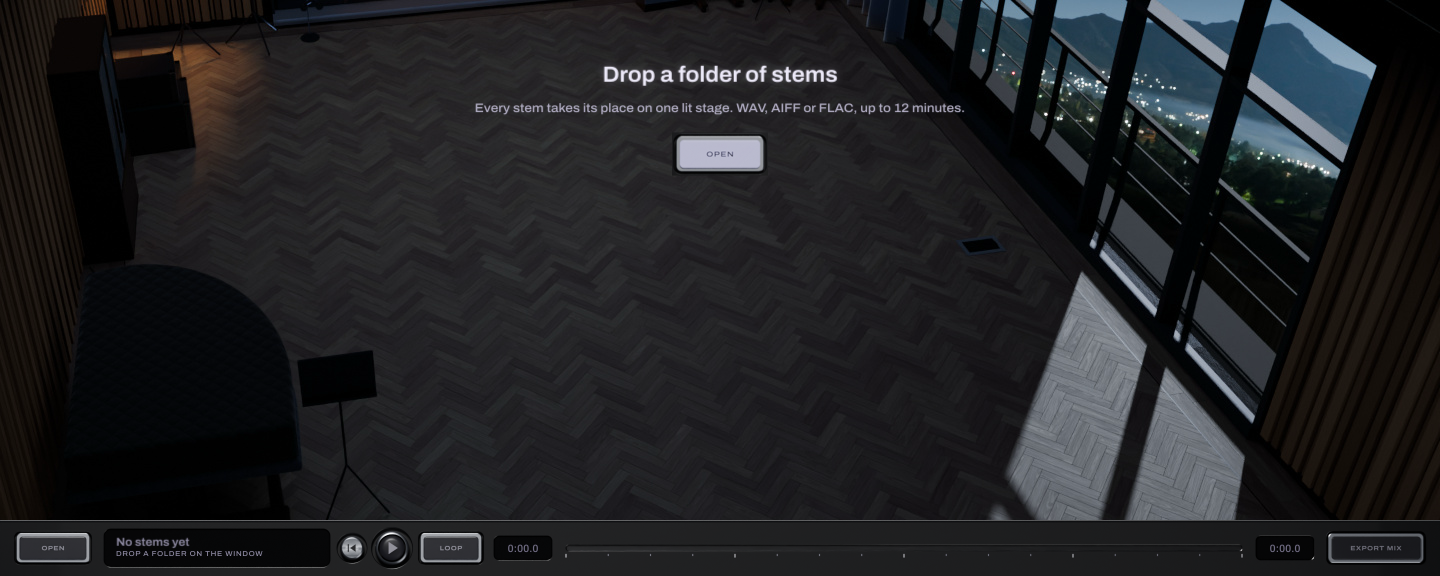
- The message. Drop a folder anywhere on the window.
- OPEN. Choose a folder of stems.
Each marker sits just left of its item.
The Stage app mixes a folder of stems on the same stage, with no DAW. In Applications (the Start menu on Windows) it is called Colorfield Mix Stage.
- Open stems: click OPEN or press Cmd + O (Ctrl + O on Windows) and choose a folder, or drop a folder or audio files on the window.
- What it reads: WAV, AIFF and FLAC files at the top level of the folder (not subfolders), mono or stereo. A file with more channels uses its first two. Each stem can be up to 12 minutes long; a longer file is cut at 12 minutes. Stems at another sample rate are converted to your audio device's rate, and shorter stems are padded so every loop lines up.
- The session: each stem becomes its own Colorfield on one stage. File names become track names and role guesses, and the session starts placed by the "Pop: vocal forward" plot. Everything in the window works as in the plugin: rooms, the listener, the deck, plots, scenes, collisions and undo. With no parameter view, Room Size, Brightness, Room Amount and Tail Mode stay at their defaults.
- Sessions are not saved: export before you quit. Opening another folder replaces the stage without asking.
- Audio output: the app plays through your computer's default audio output.
- License: the Stage app uses the same Colorfield license or trial as the plugin. Without one it plays silence, and EXPORT MIX opens the license card.
- Its own stage: the Stage app's stage does not show the tracks of a DAW session that is open at the same time.
The transport

- OPEN. A folder of stems.
- Session. Its name and stem count.
- BACK, PLAY and LOOP. The transport keys.
- Playhead. Where you are.
- Timeline. Click or drag to move.
- Length. The song's length.
- EXPORT MIX. Renders the mix.
Each marker sits just left of its control; the timeline's sits above it.
| Control | What it does | Range | Default |
|---|---|---|---|
| BACK | Jumps to the start of the song, or of the loop region. | ||
| PLAY | Plays or stops the song. Space does the same. Playback starts over when the song ends. | Stopped | |
| Timeline | Click or drag to move the playhead. Cmd-drag (Ctrl-drag on Windows) lays a loop region and starts looping it from its start; a region shorter than a quarter second is ignored. Double-click clears it. | ||
| LOOP | Turns looping of the region you laid off and back on. | On or off | |
| EXPORT MIX | Asks where to save, then renders the whole song from the start as a 24-bit stereo WAV at your audio device's sample rate, exactly as you hear it, so turn SOLO and ROOM ONLY off first. It ends where the longest stem ends: the room's ring-out after that is not included. |
Keyboard and mouse
Keys work when the Colorfield window has keyboard focus: click the stage once. Some DAWs keep certain keys for themselves.
| Action | Mac | Windows |
|---|---|---|
| Select a track and open its deck | Click it | Click it |
| Add a track to the selection, or take it out | Shift + click | Shift + click |
| Move the selection | Drag | Drag |
| Move and keep the level | Drag, then hold Shift | Drag, then hold Shift |
| Move finely (quarter speed) | Cmd + drag | Ctrl + drag |
| Move the selection 10 cm (Up is away from you) | Arrow keys | Arrow keys |
| Move 1 cm / 50 cm | Shift / Cmd + arrow keys | Shift / Ctrl + arrow keys |
| Select the next / previous track | Tab / Shift + Tab | Tab / Shift + Tab |
| Switch STAGE and PLAN | P | P |
| Undo | Cmd + Z | Ctrl + Z |
| Redo | Cmd + Shift + Z or Cmd + Y | Ctrl + Shift + Z or Ctrl + Y |
| Recall / store a scene | Click / Shift + click its key | Click / Shift + click its key |
| SEAT to 30 % | Double-click SEAT | Double-click SEAT |
| Fine drag on a knob | Shift + drag | Shift + drag |
| Step a knob (Shift for fine) | Mouse wheel | Mouse wheel |
| Reset a knob | Double-click, or Cmd + click | Double-click, or Ctrl + click |
| Type an exact value | Click the value | Click the value |
| Stage app: play or stop | Space | Space |
| Stage app: open a folder of stems | Cmd + O | Ctrl + O |
| Stage app: lay / clear a loop region | Cmd + drag / double-click the timeline | Ctrl + drag / double-click the timeline |
With VoiceOver, each track on the stage reads its name, distance and angle. Press it to select it, then move it with the arrow keys.
Recipes
These are starting points. Every mix is different, so adjust by ear.
Stage a pop mix fast
| Setting | Value |
|---|---|
| Room | Tracking Room |
| Song | Playing, so the loudest track in each role takes the main spot |
| PLOTS | Pop: vocal forward |
| Then | Open COLLISIONS and APPLY the suggestions you like |
Push a vocal back without losing it
| Setting | Value |
|---|---|
| Track | The vocal, selected |
| LEVEL LOCK | On |
| Move | Drag it back until it sits in the room |
The vocal keeps its loudness while more of the room surrounds it.
Put the band in a bigger space
| Setting | Value |
|---|---|
| Room | Loft or Concert Hall |
| SEAT | 50 to 70 %, further from the band |
| Array | Spaced pair, for the widest room |
Compare two stagings
| Setting | Value |
|---|---|
| Scene A | Shift-click A with the first staging |
| Scene B | Rearrange the band, then Shift-click B |
| Compare | Click A and B while the song plays; each recall glides over 1 second |
Lighten a big session
| Setting | Value |
|---|---|
| Tail Mode | Eco on tracks that need little room (hats, percussion, effects) |
| Keep Full | On the tracks that carry the room |
| Windows | Close the Colorfield windows you are not using |
Parameters
Every parameter your DAW sees. "(room)" marks the six room settings, which are copied to every Colorfield on the stage.
| Parameter | Range | Default | Automatable | In the window |
|---|---|---|---|---|
| Position X | L 100 % to R 100 % (C is the center) | C | Yes | Drag on the stage |
| Depth | 0 to 100 %, front of the stage to the back | 10 % | Yes | Drag on the stage |
| Width | 0 to 100 % | 100 % | Yes | WIDTH (stereo tracks) |
| Aim | 0 to 100 % | 0 % | Yes | AIM |
| Level Lock | Off or On | Off | Yes | LEVEL LOCK |
| Air | 0 to 200 % | 100 % | Yes | AIR |
| Reflections | OFF (-30 dB) to +6 dB | 0 dB | Yes | REFLECTIONS |
| Room Send | OFF (-30 dB) to +6 dB | 0 dB | Yes | ROOM SEND |
| Output | -24 to +12 dB | 0 dB | Yes | OUTPUT |
| Tail Mode | Full or Eco | Full | No | None |
| Monitor | Normal, Mono, Room Only, Direct Only, Mute | Normal | No | SOLO and ROOM ONLY |
| Room (room) | The six rooms | Tracking Room | Yes | The header |
| Room Size (room) | 70 to 140 % | 100 % | Yes | None |
| Brightness (room) | -100 to +100 % | 0 % | Yes | None |
| Room Amount (room) | 0 to 100 % | 20 % | Yes | None |
| Listener Seat (room) | 0 to 100 % | 30 % | Yes | SEAT |
| Listener Array (room) | ORTF, Spaced Pair, XY | ORTF | No | The array window |
| Bypass | Off or On | Off | Yes | Your DAW's bypass |
- Monitor is a listening aid and is not saved: every Colorfield opens in Normal. Mono and Direct Only are reached only through this parameter.
- Bypass is the same switch as your DAW's bypass. Bypassed, Colorfield crossfades to your dry track over about 21 ms (at 48 kHz) while its room keeps running underneath, so turning bypass off never restarts the room.
- Extra steps. Some DAWs list more steps than these for Room, Listener Array, Tail Mode and Monitor. Use only the named steps. An extra Room step plays the Tracking Room while the window shows the Concert Hall; an extra Listener Array step plays ORTF, an extra Tail Mode step plays Full and an extra Monitor step plays Normal.
Tail Mode: Full and Eco
Each track has a Tail Mode.
- Full (default): the track sounds in the room completely, with its direct sound, its early reflections and its share of the room's tail.
- Eco: the direct sound and the early reflections only. The track still stands in the room and reflects off its walls, and its reflections play a little louder so it keeps the same amount of room, but it adds nothing to the room's tail, and the tail's processing does not run for it.
Use Eco on tracks that need little room, or when your computer runs short. Keep Full on the tracks that carry the room. Tail Mode has no control in the window: set it per track in your DAW's generic parameter view for the plugin, where your DAW offers one. It cannot be automated.
Hosts and limits
- Each Colorfield always renders its own track correctly. Its sound depends only on its own track and its own settings. Nothing from another Colorfield reaches its audio.
- The shared stage is certain only with every Colorfield in one host process. Some DAWs can run plugins in separate processes: a plugin run bridged, or each plugin in its own sandbox. A Colorfield in another process may not appear on this stage, so the stage is only partial. Its sound is unaffected, but edits you make on the stage (room, seat, plots, scenes) do not reach it. Host every Colorfield in the same process, then reload the session.
- Inputs and outputs. One input, mono or stereo; stereo output. No sidechain and no MIDI. On a mono track in Logic Pro, choose the Mono → Stereo version; in a DAW whose mono tracks stay mono, put mono sources on stereo tracks.
- Latency. 0 samples, reported to your DAW. The direct sound is never delayed; the room's reflections arrive after it, as in a real room.
A Colorfield that finds itself alone

If a Colorfield was saved on a stage with other tracks and opens with none of them in sight, its window shows a short note at the upper left of the stage. The note says how many tracks it was with, names the fix for your DAW and says that its sound is unaffected. It goes away as soon as the Colorfield finds the others. A Colorfield left alone because you deleted the other tracks shows no note.
A Colorfield loaded from a preset, a track template or a paste can carry the stage of the project it was saved in. A few seconds after it opens alone, it joins the stage it's opened on, with its own settings unchanged. If your DAW has two projects open in one process, each with its own stage, it can't tell which one is its own, so it stays where it is and shows the note.
| DAW | What to change |
|---|---|
| FL Studio | Turn off "Make bridged" in the plug-in wrapper for every Colorfield, then reload. |
| REAPER | Run every Colorfield in the same process, not a separate or dedicated one, then reload the project. |
| Bitwig Studio | Set the plug-in hosting mode so all Colorfield instances are hosted together, then reload the project. |
| Other DAWs | Load every Colorfield in the same process, then reload the project. |
Specifications
- Inputs: mono or stereo. Output: stereo.
- Latency: 0 samples.
- Tail: the longest tail any room can ring, reported to your DAW.
- Rooms: six, installed once for every format and the Stage app (47 MB of room pictures). The sound of every room is built into the plugin.
- Sample rates: 44.1 to 192 kHz.
- Buffer size: does not change the sound.
- Memory: about 1 MB per Colorfield at 48 kHz.
- Processing: Eco skips the room tail's processing for its track. A Colorfield also rests once its input is silent and its room has died away for a quarter second, and wakes on the next sound, so a stopped song costs little.
- Window: 1152 x 720 to 2560 x 1600, 16:10; 1440 x 900 when it opens.
- Formats: AU, VST3 and AAX on macOS, VST3 and AAX on Windows, and the Stage app on both.
- Systems: macOS 10.15 or later on Intel, macOS 11 or later on Apple Silicon; Windows 10 or later, 64-bit.
Not included
- There is no control to set a track's role, name or color by hand; they come from your DAW.
- The Stage app does not save sessions and has no parameter view, so Room Size, Brightness, Room Amount and Tail Mode stay at their defaults there.
- Colorfield works on mono and stereo tracks. It does not support surround or Atmos formats.
Credits
- Interface type: Archivo, copyright 2020 The Archivo Project Authors, used under the SIL Open Font License, Version 1.1.
- Room absorption data: the pyroomacoustics materials database (MIT License), from M. Vorländer, Auralization, Springer 2008.
- The full license texts are in the open source notices, which the installer and the store carry.
Installation and activation
Install
- Download the installer from vitricaudio.com/downloads or your account at vitricaudio.com/account.
- Save your work and quit your DAW.
- Run the
.pkg(Mac) or.exe(Windows). - Open your DAW. If Colorfield is not listed, rescan plugins.
Use AU in Logic Pro, AAX in Pro Tools and VST3 in other DAWs. The installer also puts in the Stage app and the six rooms. On macOS:
- AU:
/Library/Audio/Plug-Ins/Components - VST3:
/Library/Audio/Plug-Ins/VST3 - AAX:
/Library/Application Support/Avid/Audio/Plug-Ins - Stage app:
/Applications, as Colorfield Mix Stage - Rooms:
/Library/Application Support/Vitric Audio/Colorfield/Stage
On Windows:
- VST3:
C:\Program Files\Common Files\VST3 - AAX:
C:\Program Files\Common Files\Avid\Audio\Plug-Ins - Stage app:
C:\Program Files\Vitric Audio\Colorfield Mix Stage, with a Start menu entry under Vitric Audio. A custom install can leave it out. - Rooms:
C:\ProgramData\Vitric Audio\Colorfield\Stage
The installed rooms are the pictures of the stage. If they are missing, the stage says "The rooms are not installed." Your tracks still sound right, because the sound of every room is built into the plugin, but the stage can't be used until you run the Colorfield installer again.
Activate your license
Until you activate a license or start a trial, Colorfield passes no sound, the license window reads LOCKED, and a large LOCKED mark with "UNLOCK AT VITRICAUDIO.COM" sits over the stage. The license card opens by itself once each time you open the window. Open it any time by clicking the license window in the header.
- Open the license card.
- Paste the
VT-...key from your purchase email or account page. Lost it? vitricaudio.com/license can resend your keys. - Click Apply license.
A full license works offline after activation and runs on up to three computers at a time. The Stage app uses the same license. Sessions always reopen with their settings, whatever the license state.
Activate a computer that is offline
- On the offline computer, open the license card and click Copy code to copy its machine code (it starts with
VTM1-). - On any computer that is online, open vitricaudio.com/license, enter your key and the machine code, and download the license file.
- Copy the file to the offline computer, open the license card and click Load file.
Try it free for 72 hours
- Open the license card and click Start free trial. The trial page opens with the product and machine code filled in.
- Sign in with the emailed link and click Start my 72-hour trial.
- Click Copy trial key, paste it into the license card and click Apply license. Or click Download license file and use Load file. A backup copy is emailed to you.
The trial has every feature, runs 72 hours from issue and needs an internet connection while you use it. There is one trial per product, person and computer, and no payment details are needed. During the trial the license window reads TRIAL and the days left. When it ends, Colorfield goes silent but keeps every setting in your projects.
If the license window reads LOCKED during a trial, the card says "Trial verification required": connect to the internet and click Retry trial.
Updates
Colorfield asks vitricaudio.com once a day, while its window is open, whether a newer version exists, and sends only the product, your version and your platform.
- Click the license window in the header to open the license card. When a new version is out, it shows UPDATE AVAILABLE with the new version and yours.
- Click Download (the button shows the new version number) to open the product page and get the installer. The notice stays on the card until you install the new version; Later does not hide it.
- Quit your DAW and run the new installer over the old one. Your sessions reopen as saved.
Colorfield has no switch of its own for the checks: it follows Check for updates in the Options menu of your other Vitric plugins. With no other Vitric plugin on this computer, the checks stay on.
Troubleshooting
Colorfield does not appear in my DAW
Rescan plugins and restart the DAW. In Logic Pro, use Logic Pro > Settings > Plug-in Manager and Reset & Rescan Selection. On Windows, make sure your DAW scans C:\Program Files\Common Files\VST3. In Pro Tools, quit and reopen Pro Tools so it scans the AAX folder. Colorfield 1.0.0 has no AAX version, so Pro Tools needs 1.0.3 or later.
The stage says "The rooms are not installed."
Run the Colorfield installer again. Your tracks still sound right; only the pictures of the rooms are missing.
A track is silent
- The license window reads LOCKED: Colorfield has not been activated, the trial ended, or the trial needs to check in. Open the license card from the license window.
- A solo or ROOM ONLY is still on: they stay in effect when you select another track, and their keys go dark. Click SOLO on and off on any track: every track plays normally again, ROOM ONLY included. Reopening the session does the same.
Some tracks are missing from the stage
Your DAW is probably running them in another process (bridged or sandboxed); see A Colorfield that finds itself alone. Host every Colorfield in the same process and reload the session. Their sound is unaffected meanwhile. A track that is disabled or offline in your DAW has no running Colorfield, so it is missing from the stage too.
The room window reads SETTINGS DIFFER · SYNC
The tracks disagree on a room setting, usually because a Colorfield was loaded from a preset or a saved track with other room settings, or two tracks automate a room setting differently. Automation on one track alone moves the whole stage. Click it to give every track the most recent settings. It is one undo step.
The collisions list stays empty
Play the song: the list reads live audio. Tracks that are bypassed, muted by a solo, set to ROOM ONLY or very quiet are left out. "Nothing on this stage masks anything else where it stands." means no pair masks enough to list.
The mix got quieter after a plot or a move
Tracks further back are quieter, as in a real room: up to 10 LU at the back of the stage. Raise OUTPUT on the tracks you want louder, or bring them forward. To move a track without changing its level, turn on LEVEL LOCK, or start dragging and then hold Shift.
A plot puts tracks in odd places
Plots place tracks by role, and roles come from track or file names. Name tracks with clear words (Vocal, Kick, 808, Bass, Gtr, Keys, Pad), then choose the plot again. Undo takes back a plot in one step.
The exported mix cuts off the room's ring-out
EXPORT MIX ends where the longest stem ends. Add silence to the end of one stem to keep the tail.
My computer runs short
Set Tail Mode to Eco on tracks that need little room, and close Colorfield windows you are not using.
Shortcuts do nothing
Click the stage once so the Colorfield window has keyboard focus. Some DAWs keep certain keys for themselves; use the mouse for those.
I lost my license key
Enter your email at vitricaudio.com/license to have your keys sent again, or find them in your account at vitricaudio.com/account.
Support
Write to support@vitricaudio.com with your Colorfield version (it is in your DAW's plugin manager), operating system, DAW and version, plugin format and the exact error if there is one.
Every purchase comes with a 14-day refund, no questions asked.